2.5.4. Updating Loadware with Web-Based Management 


IMPORTANT:
Disadvantage You can only upgrade one IP gateway
board at a time.
- To use this option, log on to OpenScape 4000 Assistant and select Expert mode > Gateway Manager.
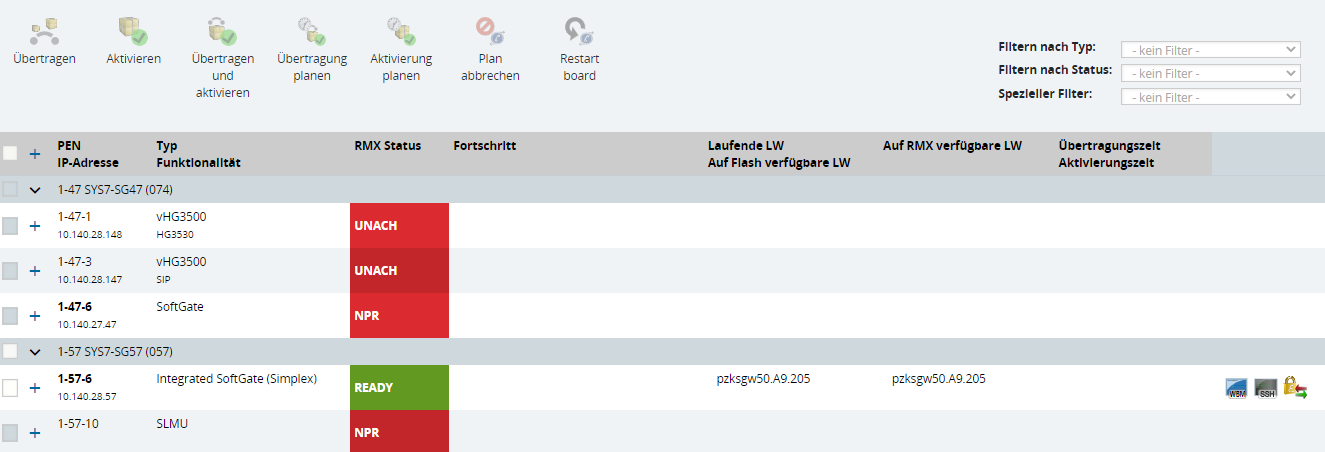
- Now select the required board and click the link WBM. WBM for HG 35xx now opens.
- Now select Maintenance > Config and Update > Software Update > Load Software Image to Gateway
- Select Load via HTTP.
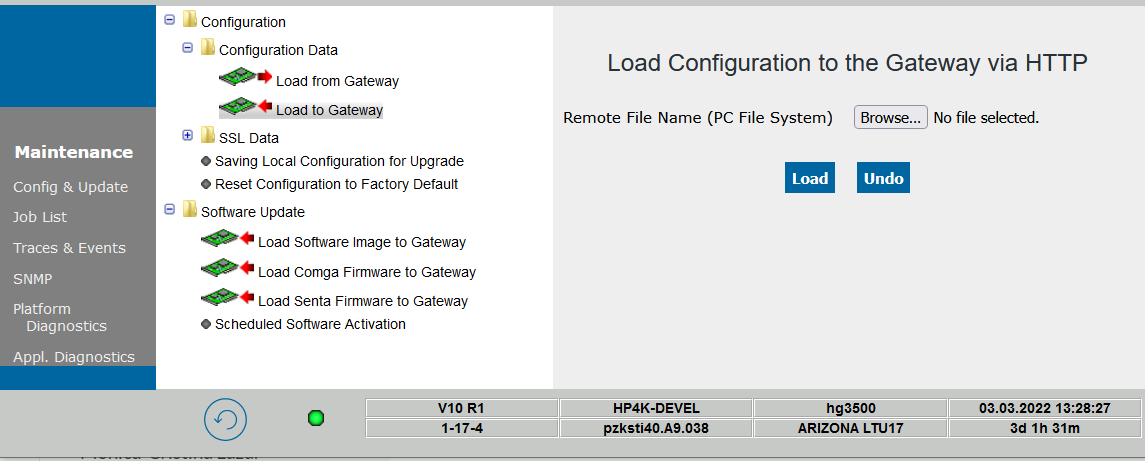
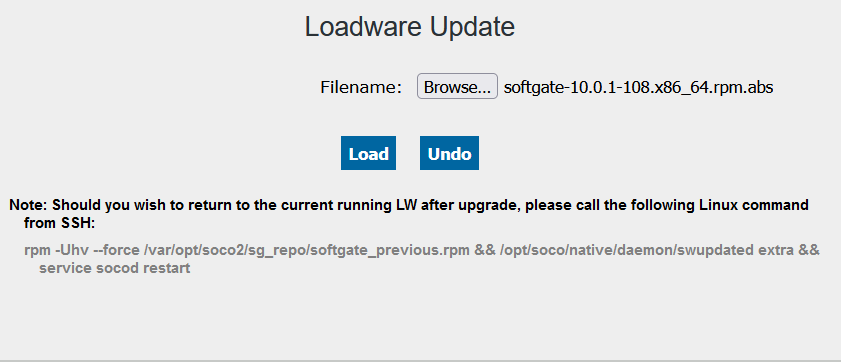
- In the field Remote File Name (PC File System) you must enter the software (loadware) saved previously on your PC. This is performed using the Browse button.
- Now select the Load button to start loading. Loading can take up to five minutes. The loadware is saved in the flash memory of the board.
IMPORTANT:
The LAN must be connected but the IP gateway must not
be rebooted during the load operation (AMO USSU, AMO BSSU).
- Activate (decompress and install) the loadware.
-
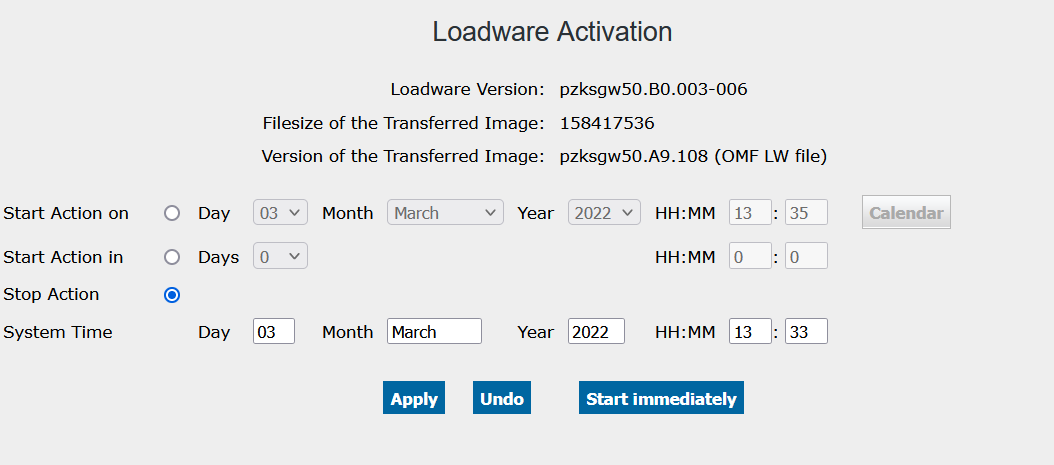
Activation (loadware decompression and installation) now takes less than five minutes.You can activate the software (loadware) immediately with Activate Now or use the Schedule Activation button to implement time-controlled activation on a particular day.