8.2.5.1. Setting up HG 3500 via the OpenScape 4000 Assistant 


HG 3500 can be set up and administrated via the Configuration Management
of the OpenScape 4000 Assistant.
First of all you have to set the function blocks (corresponding AMO:
AMO BFDAT).
Start Configuration Management - System Data - Board - CGW Function
Block.
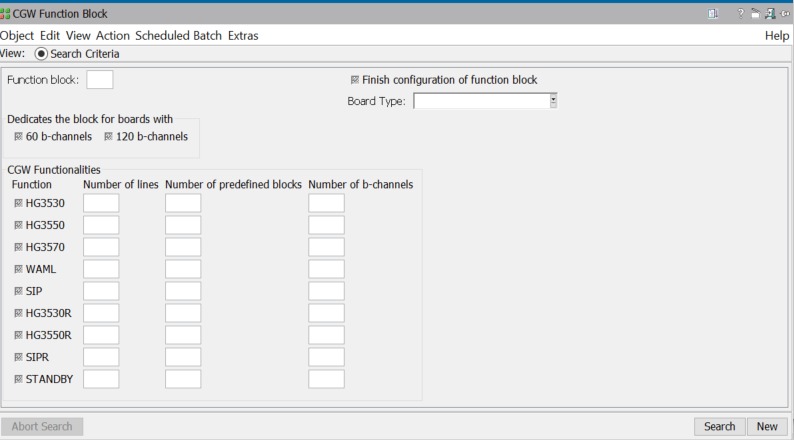
Click the Search button to see which function blocks have already
been configured. In the following screen 5 function blocks have been
configured. You can display them by clicking through the object list.
Figure 157. Configuration Management - System Data - Board - CGW Function Block - View Object
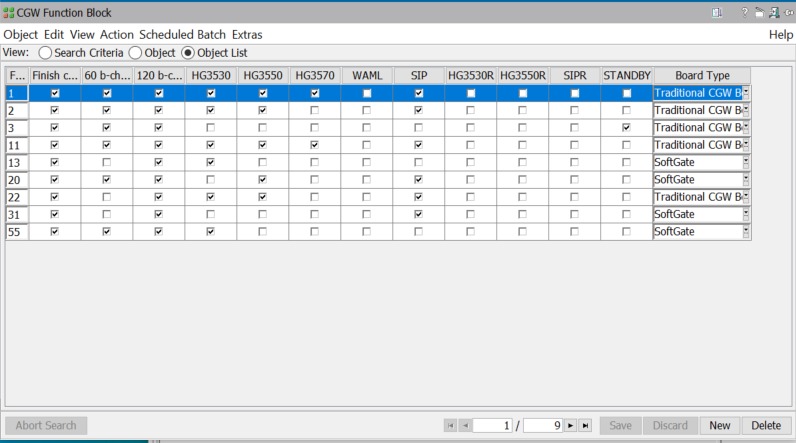
You also have the possibility to view them all in one table. Just
select the radio button Object List.
Figure 158. Configuration Management - System Data - Board - CGW Function Block - View Object List
To configure a new function block click New. Enter a free Function
block number. Select the maximum number of b-channels of the common
gateway board. Select the desired function(s) for this function block.
Click Save. Now you have to enter the needed Number of lines,
Number of predefined blocks and / or Number of b-channels
for the selected functions. Click Save again. If you are done
with the configuration of this function block select Finish configuration
of function block and click Save.
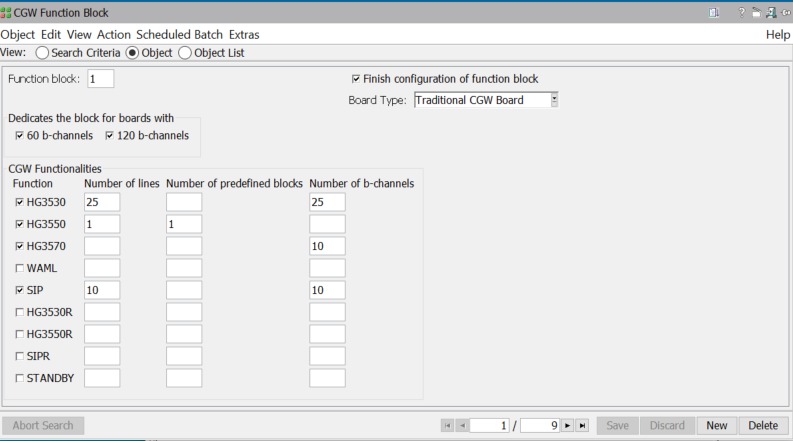
Configuration Management - System Data - Board -
CGW Function Block - Configure new Function block
Now you have to assign a common gateway board to the function block
(corresponds to AMO BCSU). Start Configuration Management - System
Data - Board - Board. Click Search to search for all boards
configured in the system.
To configure a new common gateway board select the desired board (Part
number) and click New. Enter the following data:
- LTU
- SLOT
- Part number
- Function ID (set always to 1)
- Board Name
- CGW Function block
Figure 159. Configuration Management - System Data - Board - Board
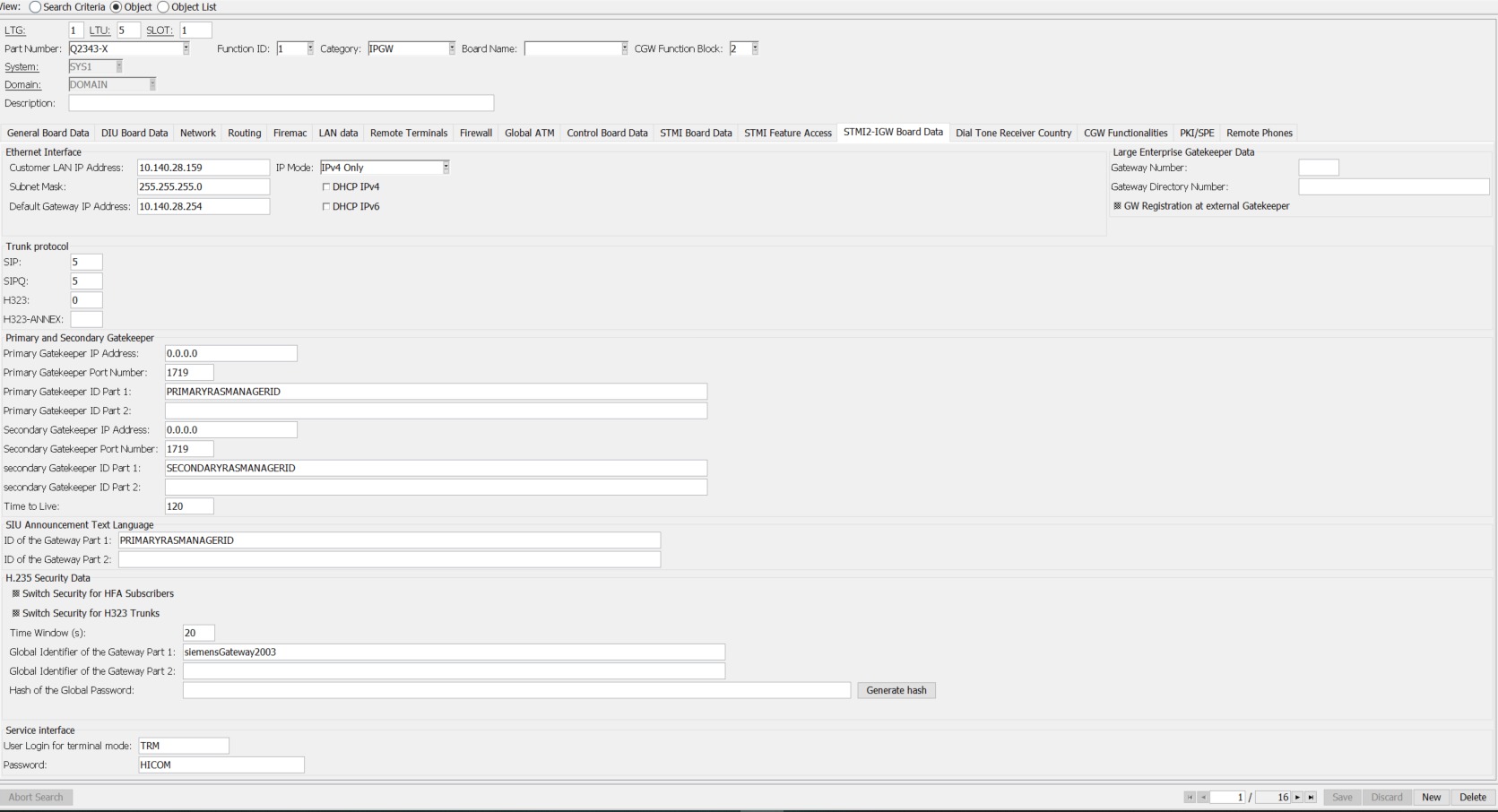
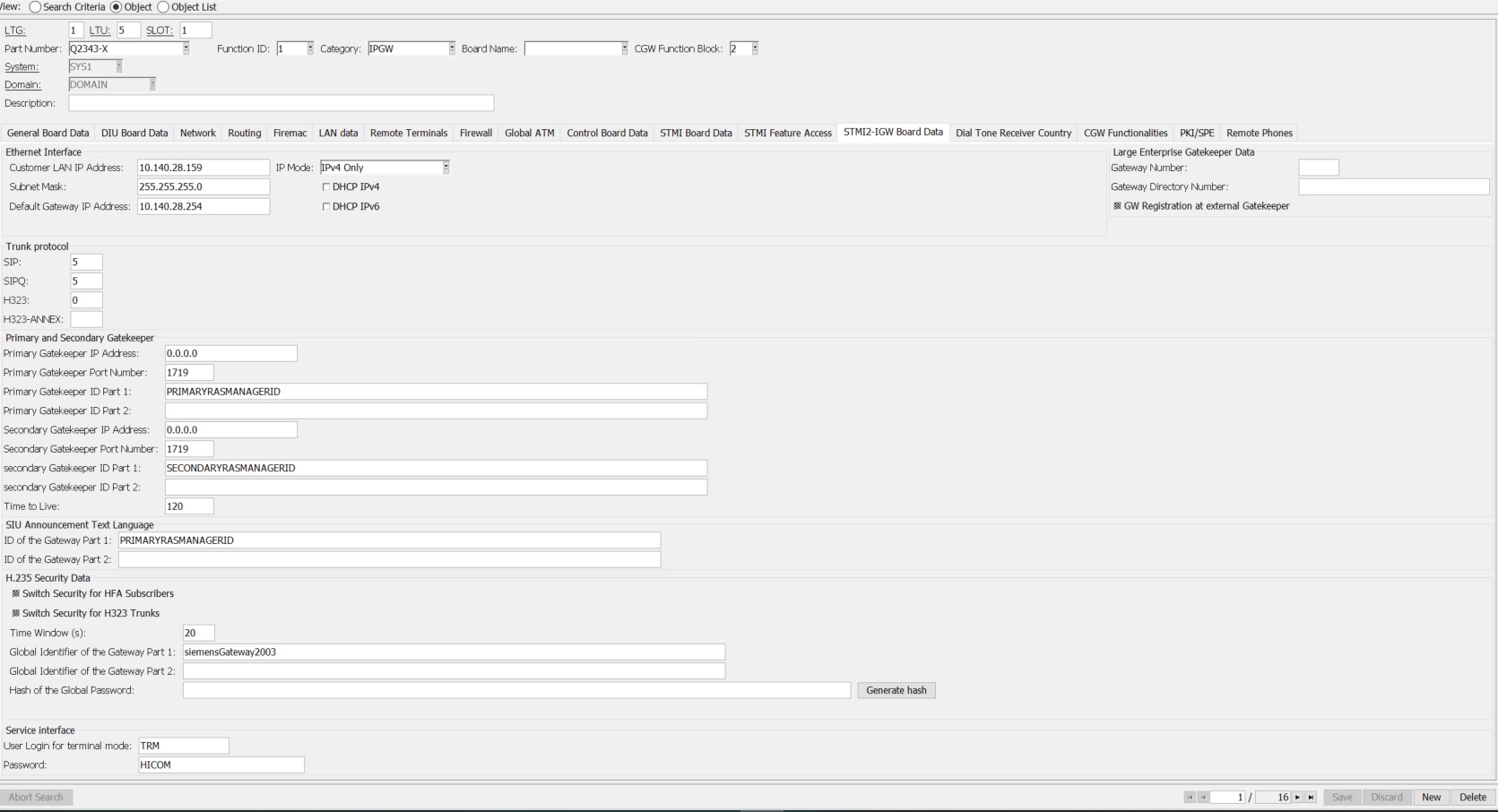
Select the STMI2-IGW Board Data tab (corresponds to AMO BCSU
and AMO CGWB). Here you have to enter
- Ethernet interface
- IP address of customer LAN
- Subnet mask
- Standard gateway IP address
- Data for large enterprise gatekeeper
- CO protocol (not used in this example)
- Primary and secondary gatekeeper
- Gateway data
- H.235 security data
- Service interface
Figure 160. Configuration Management - System Data - Board - Board - STMI2-IGW Board Data tab
The next screen shows the STMI Board Data tab. Here you can
configure for example the Idle Pattern, IP Address and
Number of DMC connections (corresponds to AMO CGWB).
Save the completed settings using the Save button.
Use the Search button to go to the board you have already configured.
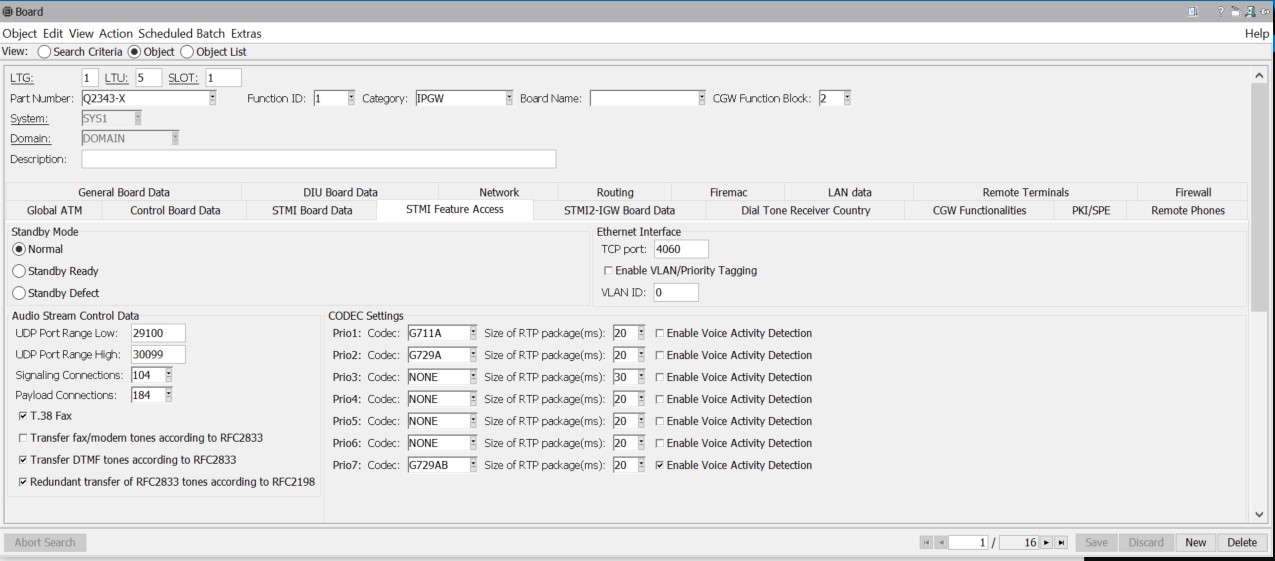
In the STMI Feature Access tab (corresponds to AMO CGWB) you
can configure in which mode the common gateway should work (Normal,
Ready or Defect), Ethernet Interface data and
Audio Stream Control Data.
IMPORTANT:
It is important to ensure that the number of UDP
ports is at least twice as large as the number of b-channels of the common
gateway module.
Figure 161. Configuration Management - System Data - Board - Board - STMI Feature Access tab