15.1.3.1. Configuration on OpenScape 4000 


The OpenScape Mobile Pro clients connect to OpenScape 4000 via SoftGate
(vHG-SIP) or STMIX/STMIY. Besides the regular SoftGate/STMIX/STMIY configuration,
vHG/SG – CICA (application hosted by CSTA) link has to be considered.
The CSTA/CICA IP address is delivered to the SoftGate/STMIX/STMIY via board data
(AMO-SIPCO).
INFO:
A valid KNDEF entry is mandatory with defined CC, AC and LC for
E164 UFIP registration to OpenScape Mobile Pro Client. For countries
not using KNDEF codes, a KNDEF KNOWNET entry must be created instead
and linked with AMO SDAT to OpenScape Mobile Pro Client devices.
When changing KNDEF, following steps must be executed:
1. Configure all existing OpenScape Mobile Pro Clients with the new
E164 numbers.
2. Change KNDEF.
3. Restart all gateways used for OpenScape Mobile Pro Client connectivity.
CSTA configuration
CICA in CSTA can be seen as an own application.
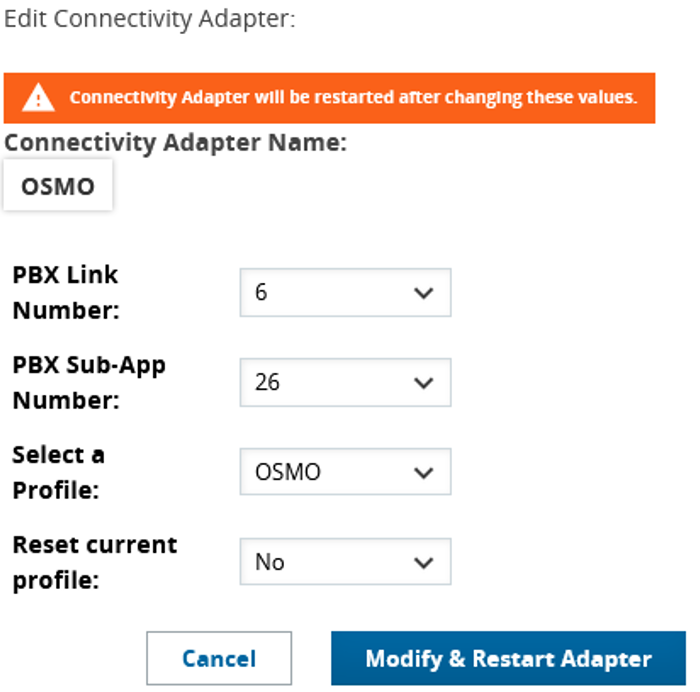
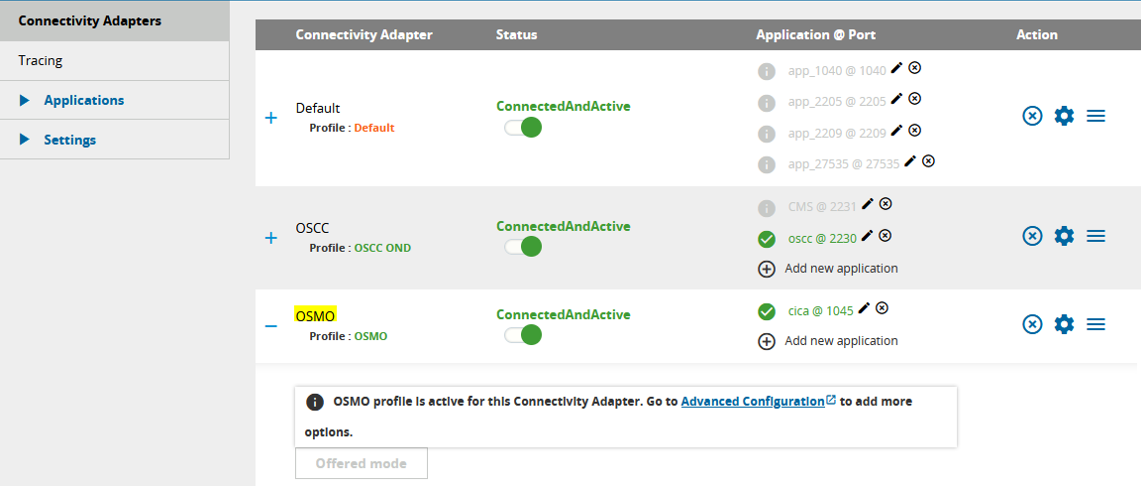
By default it uses port 1040 to connect to the CA4000_default.
The used port/CA4000 must have “E164 number format” support and
“ONS monitoring” enabled.
Figure 344. CA4000 Default Configuration
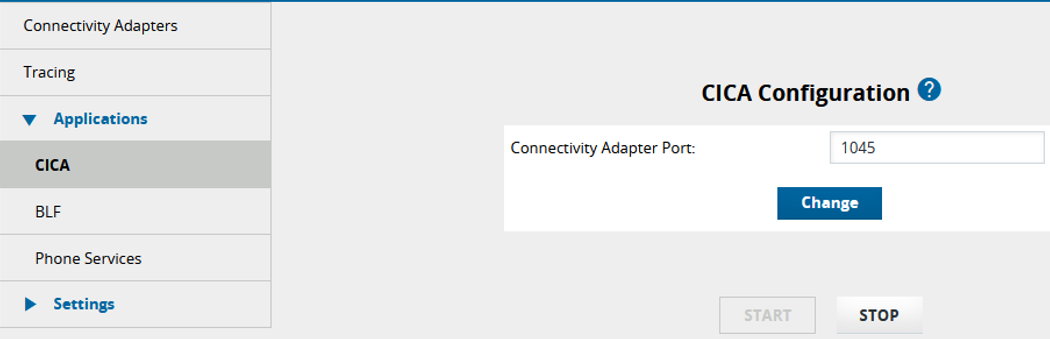
CICA application has to be configured with the correct port number
and then started by checking the option “Auto start” and clicking
“Start”:
Figure 345. CICA Configuration
If needed, the default configuration can be changed: a new/different
port/application can be configured.
After configuring the NGS IP address and confirming that CSTA CICA
application is started with the correct configuration, its status can
be checked in the WBM of the vHG (SIP) board. The vHG where the OpenScape
Mobile Pro Clients will register to the OpenScape 4000) must show under
the tab “CICA Connection Status” the status “Registration at CICA
successful”:
The default configuration should look like in the following figure:
Figure 346. vHG WBM CICA Status Page
User Configuration in OpenScape 4000
Each OpenScape Mobile Pro Client will register in the OpenScape 4000
as an UFIP SIP device. The client must be linked to an actual desktop
phone via parameter CLNTDESK and marked as OSMO Pro client via Parameter
OSMO=YES
ADD-SBCSU:STNO=<UFIP_STN>,OPT=OPTI,CONN=IP2,PEN=<X-Y-Z-T>,DVCFIG=UFIP, CLNTDESK=<DSKTP_PHN_STN>,OSMO=YES
It is not necessary that the desktop phone is in service. If the desktop
phone is out of service, logged off, or if there is no phone HW connected
at all then autopilot routing skips the routing step to the deskphone.
Desk Phones must require a Port Equipment Number (PEN aka. LAGE) and
therefore TDM Phones cannot be used in Signed–Off state.
Correct linkage can be checked:
DIS-SBCSU for UFIP STN will show:
DESK=<DSKTP_PHN_STN>
DIS-SBCSU for Desktop Phone STN will show:
CLIENT=<UFIP_STN>
Parameters CLNTDESK and OSMO cannot be changed via CHANGE-SBCSU. In
order to change them , the UFIP SIP client has to be deleted and reconfigured
with the new CLNTDESK /OSMO value. The OSMO Pro UFIP SIP client consumes
one OSMO license.
OSMO Pro combined mode only:
- The node hosting the OSMO Pro UFIP SIP devices must have KNFOR parameter TONIN set to INTERPRE.
After configuration of the SBCSU linkage between Deskphone and Client
the configuration can be verified on the SIP HG WBM under Configuration
-> Voice Gateway -> Clients -> UFIP SIP (Figure 7). Further
it can be verified if everything is correctly configured and the linkage
fits to the ONS number which will be used for client registration. Also
after a successful registration the entry will be displayed in bold font.
Figure 347. Client Configuration

Timer Configuration
The timers control the Routing steps of Autopilot Routing for OSMO users. Routing
steps are: OSMO Client, deskphone and eventualy Voicemail (if configured).
The Client rings until FWDDESK timer expires.
The call is moved from OpenScape Mobile Pro Client to deskphone and another timer
FWDVM is started.
The incoming call is still signaled at the Client.
FWDDESK timer is configurable with the following AMO command:
CHANGE-CTIME:TYPESWU=CP2,FWDDESK=xx;
Upon expiry of FWDVM forward to Voice Mail the call
is forwarded to the deskphones No Answer Destination (Voicemail for many users).
FWDVM timer is configurable with the following AMO command:
CHANGE-CTIME:TYPESWU=CP2,FWDVM=xx;
The timers listed above can also be administered per user with AMO
ACTDA (VARRING)
Call reach cellular number only if user meets the following 3 conditions:
- OSMO client has configured the cell number
- "Route calls To Cell" is enabled
- OSMO client is signed out (not registered)
In this case routing will be deskphone then cell (and voicemail if configured)
ZANDE:OSMO Configuration
Additional parameters like SBC address etc are configured with AMO
ZANDE branch OSMO.
CHANGE-ZANDE:TYPE=OSMO,SERVMAIL=”helpdesp@unify.com”,OSVTLS=0,
SBCTLS=0,QOSVIDEO=0,DSCPTOS=NO,WMM=YES,SECOSV=BESTEFRT,SECOSBC=BESTEFRT;
CHANGE-ZANDE:TYPE=OSMO,FEATLIST=ALL; /* ALL sets all available features */
CHANGE-ZANDE:TYPE=OSMO,VCPRIO1=H264,VCPRIO2=VP8;
CHANGE-ZANDE:TYPE=OSMO,SBCFQDN1=”os4kosmo.unify.com”,SBCADDR1=0,0,0,0,PORT1=0,
SBCADDR2=210.1.234.56,PORT2=65061;
CHANGE-ZANDE:TYPE=OSMO,SBCADDR3=192.168.0.55,PORT3=5061;
Enter 0.0.0.0 to delete a SBC IP address from ZANDE:OSMO.
In the example above the FQDN “os4kosmo.unify.com” represents
a hostname which resolves into a Public IP e.g.. 210.1.234.56 of the
OpenScape SBC (Public Internet Access Side). The other IP addresses are
examples of local WIFI IP addresses, which can be configured additionally
at the Access Side of the OpenScape SBC, e.g. Non-VLAN IP. Depending
on the customer setup this may look totally different, e.g OpenScape
SBC behind a NAT Router where the Access Side has an internal IP and
the OpenScape SBC utilizes his “External Firewall IP” field.
Please refer to the OpenScape SBC Service Documents for all available
setup options.
Requirements
- OpenScape Mobile Pro UFIP-SIP subscribers must be configured on SoftGate vHG or STMIX boards with SIP functionality (BFDAT)
- The desktop phone must be a TDM, HFA or UFIP SIP device. Analog devices are not supported.