15.1.3.4. OpenScape SBC Configuration Example 


OpenScape SBC usage is mandatory
Feature Remote Subscriber in OpenScape SBC must be enabled and used to register the
OSMO Pro Clients through the OpenScape SBC to the OS4K Gateway which hosts the UFIP
proxy devices. For detailed configuration of OpenScape SBC please refer to the
OpenScape SBC Configuration Guide.
For detailed configuration of the connection to the Apple push notification server
please refer to the OpenScape Mobile Pro administrator documentation.
Following a brief example of an OpenScape SBC configuration for OSMO Pro:
VoIP
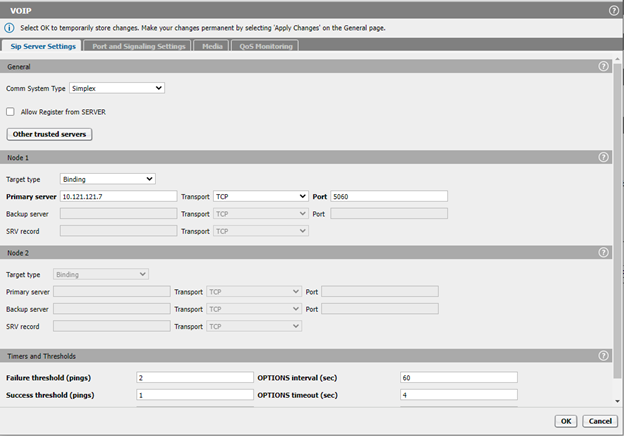
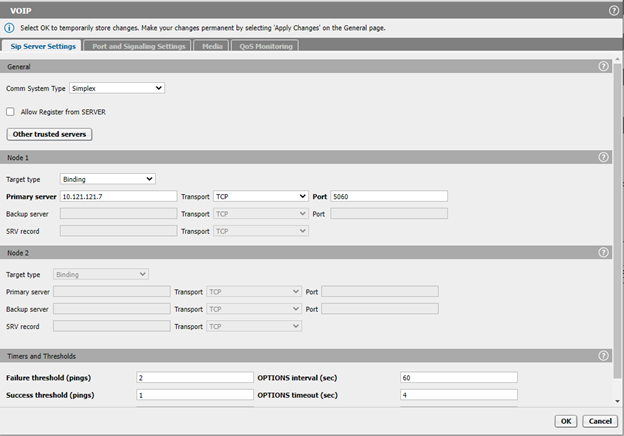
Sip Server Settings
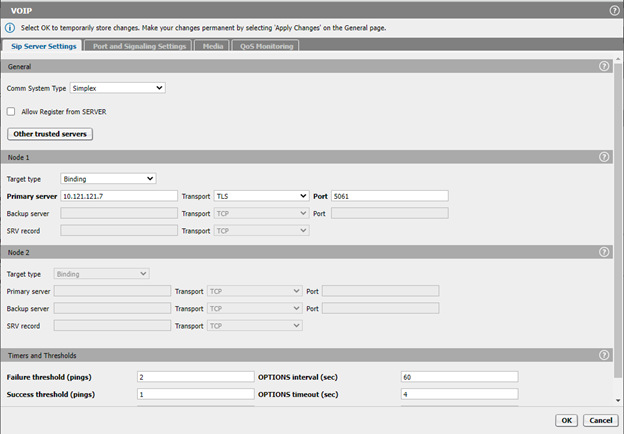
4K Gateway’s (SIP Subscriber Gateway > SoftGate/STMIX/STMIY e.g.10.121.121.7) are
configured via TCP on 5060 or TLS on 5061 (for secure connection between OS-SBC and
4K) in two modes:
- Simplex mode (one single 4K GW is used):
- Clustered Mode (more 4K GW’s are configured on the same OS-SBC => more than 240 OSMO users):
Switch from Simplex mode to Clustered mode and add the OS4K Gateways with "Priority
1".
Go to VoIP> Sip Server Settings>Comm System Type and choose
Clustered.
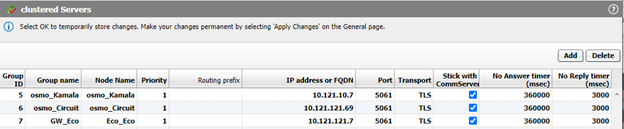
Next, add the Clustered servers.
IMPORTANT:
Stick with CommServer must be checked! This is a dedicated
setting for OSMO-OS4K and SBC.
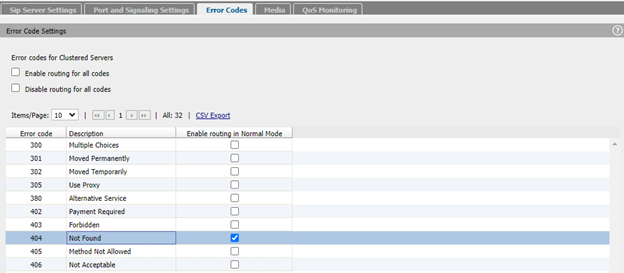
Enable error code for 404 (SBC will reroute a message if it receives a 404 Not
Found)
At first, OSMO client registration SBC will send the REGISTER message to each GW
until it will receive a positive answer (100 Trying/200 OK), from the other GWs it
will receive a 404 Not Found.
Go to VoIP>Error Codes and select the checkbox Enable routing for
error codes for the 404 error code.
INFO:
All error codes can be enabled for rerouting simultaneously by selecting Enable
routing for all codes.
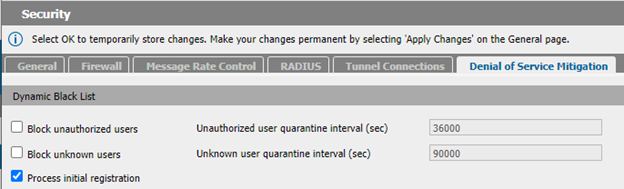
Enable Process initial registration flag in order to facilitate the
registration process (otherwise OSMO registration process will take more than 50
seconds).
Go to Security> Denial of Service and select the checkbox Process
initial registration to enable it.
Port and Signaling Settings
Per default the OS-SBC uses for payload (e. g. voice) a UDP port range configured
with “Media Independent RTP Ports”. In this example these ports were reduced from
“Port min” 35500 to “Port max” 35600:
TCP Connection Lifetime must have a value greater than Session refresh timer
in the 4K-GW (SIP Session Timer Session Expires (sec)). For example, set SBC TCP
connection lifetime to maximum allowed (1200 s) and the 4K GW one to 1190
s.

Media
OSMO media mode
Possible configurations:
|
OS4K (AMO ZANDE:OSMO)
|
...
|
OS-SBC
|
|
RTP
|
>
|
RTP Only
|
|
SRTP
|
>
|
SRTP Only or Best Effort SRTP
|
|
BESTEFRT
|
>
|
SRTP Only or Best Effort SRTP
|
For RTP configured in ZANDE:OSMO, this changes must be done:
DISP-ZANDE:OSMO;
H500: AMO ZANDE STARTED
SERVMAIL = test@unify.net
OSVTLS = 0
SBCSTLS = 0
QOSVIDEO = 0
DSCPTOS = NO
WMM = YES
SECOSV = RTP
SECOSBC = RTP
FEATLIST = CF&SST&TOH&HF&SIP&SEHO&XA&SDND&CSC&FC1&GPC
+-----------------------------------------+
| VIDEO CODEC LIST |
+-----------------------------------------+
| PRIO1 : CODEC = H264 |
| PRIO2 : CODEC = VP8 |
+-----------------------------------------+
+---------------------------------------------------------------------------+
| LIST OF IP ADDRESSES OR FULLY |
| QUALIFIED DOMAN NAMES FOR SBC GATEWAYS |
+---------------------------------------------------------------------------+
|SBCADDR1 = x.x.x.x. PORT1 = 5061 |
|SBCADDR2 = x.x.x.x PORT2 = 5061 |
|SBCFQDN3 = |
|SBCFQDN4 = |
|SBCFQDN5 = |
+---------------------------------------------------------------------------+
AMO-ZANDE-111 SYSTEM DATA - EXTENDED
DISPLAY COMPLETED;
For SRTP or BestEffort SRTP configured in ZANDE:OSMO, this changes must be done:
SRTP:
DISP-ZANDE:OSMO;
H500: AMO ZANDE STARTED
SERVMAIL = test@unify.net
OSVTLS = 0
SBCSTLS = 0
QOSVIDEO = 0
DSCPTOS = NO
WMM = YES
SECOSV = SRTP
SECOSBC = SRTP
FEATLIST = CF&SST&TOH&HF&SIP&SEHO&XA&SDND&CSC&FC1&GPC
+-----------------------------------------+
| VIDEO CODEC LIST |
+-----------------------------------------+
| PRIO1 : CODEC = H264 |
| PRIO2 : CODEC = VP8 |
+-----------------------------------------+
+---------------------------------------------------------------------------+
| LIST OF IP ADDRESSES OR FULLY |
| QUALIFIED DOMAN NAMES FOR SBC GATEWAYS |
+---------------------------------------------------------------------------+
|SBCADDR1 = x.x.x.x. PORT1 = 5061 |
|SBCADDR2 = x.x.x.x PORT2 = 5061 |
|SBCFQDN3 = |
|SBCFQDN4 = |
|SBCFQDN5 = |
+---------------------------------------------------------------------------+
AMO-ZANDE-111 SYSTEM DATA - EXTENDED
DISPLAY COMPLETED;
Best Effort SRTP:
DISP-ZANDE:OSMO;
H500: AMO ZANDE STARTED
SERVMAIL = test@unify.net
OSVTLS = 0
SBCSTLS = 0
QOSVIDEO = 0
DSCPTOS = NO
WMM = YES
SECOSV = BESTEFRT
SECOSBC = BESTEFRT
FEATLIST = CF&SST&TOH&HF&SIP&SEHO&XA&SDND&CSC&FC1&GPC
+-----------------------------------------+
| VIDEO CODEC LIST |
+-----------------------------------------+
| PRIO1 : CODEC = H264 |
| PRIO2 : CODEC = VP8 |
+-----------------------------------------+
+---------------------------------------------------------------------------+
| LIST OF IP ADDRESSES OR FULLY |
| QUALIFIED DOMAN NAMES FOR SBC GATEWAYS |
+---------------------------------------------------------------------------+
|SBCADDR1 = x.x.x.x. PORT1 = 5061 |
|SBCADDR2 = x.x.x.x PORT2 = 5061 |
|SBCFQDN3 = |
|SBCFQDN4 = |
|SBCFQDN5 = |
+---------------------------------------------------------------------------+
AMO-ZANDE-111 SYSTEM DATA - EXTENDED
DISPLAY COMPLETED;
- In case TLS together with SRTP or Best Effort SRTP towards the 4K wants to be used, then first SPE (Signalling and Payload Encryption) must be activated on 4K side (SPE must not be activated for TCP and usage of RTP)
- OS-SBC: VoIP > Sip Server Settings, switch Transport for 4K GW as: over TCP
and 5060 if RTP is used
 over TLS and 5061 if SRTP or Best Effort SRTP is used: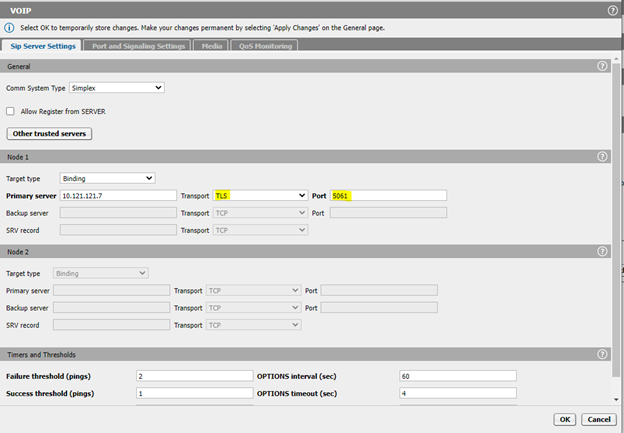
- Dedicated Media profiles need to be created for OSMO:
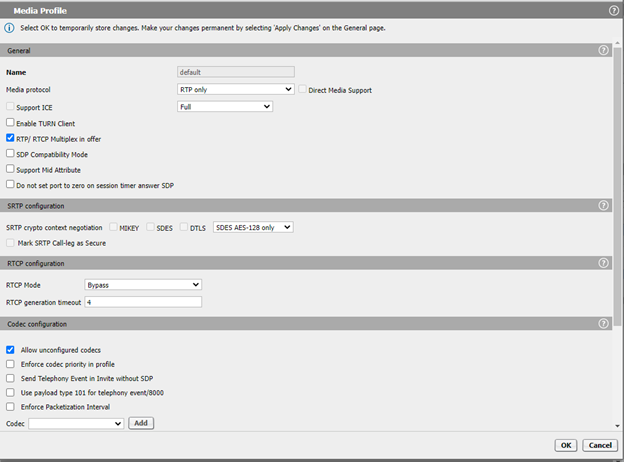 VoIP > Media > Add new Media Profile:RTP:
 SRTP (Use only with SDES):
 Best Effort SRTP (Use only with SDES)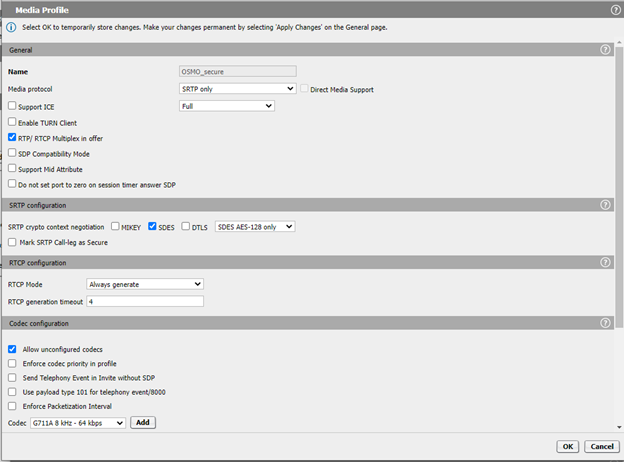
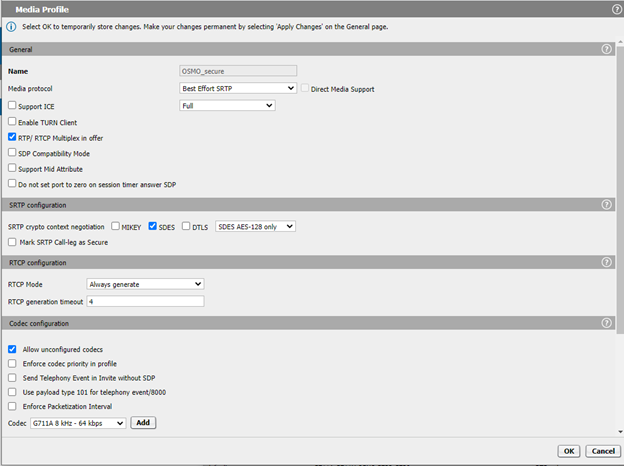
- Then select the needed profile as “Core Side Media Configuration” accordant with
your configuration (RTP, SRTP or BEST Effort SRTP)
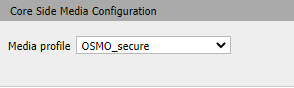 Keep in mind that you need to save all the time the configuration, don’t forget to Apply Changes (on the main page):
- Go to Features > and enable Enable Remote Subscribers
 Next steps (6,7,8) are just for SRTP or Best Effort SRTP, if RTP is used, then ignore steps 6,7,8.
 - Press Configure:
- Configure parameters as described below:
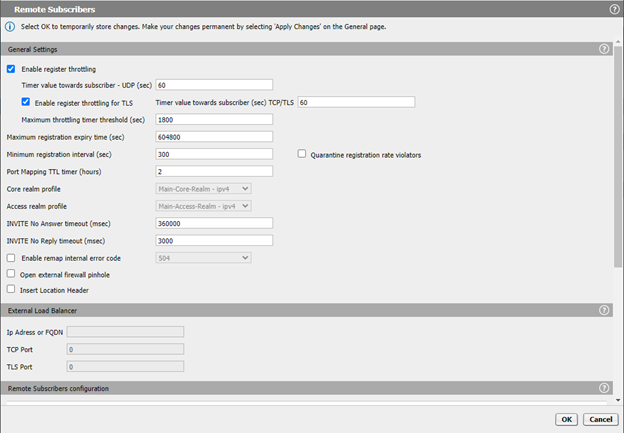
- Add new Remote Subscribers configuration
 Add as Media profile the one used at step 4: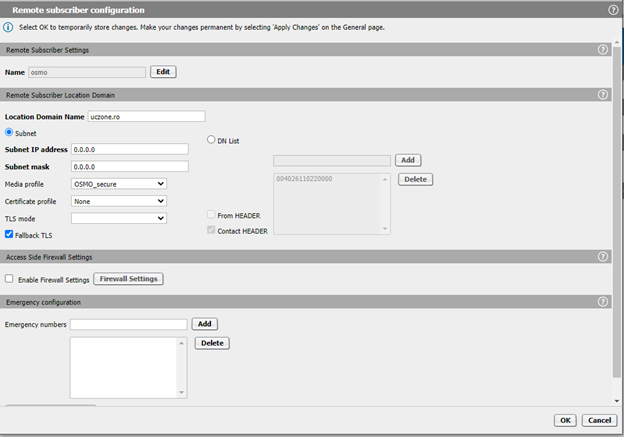
OpenScape Mobile Pro iOS is using APN’s (Apple Push Notification), it needs to be
activated in OS-SBC:
Features > and enable Enable Push Notification Service

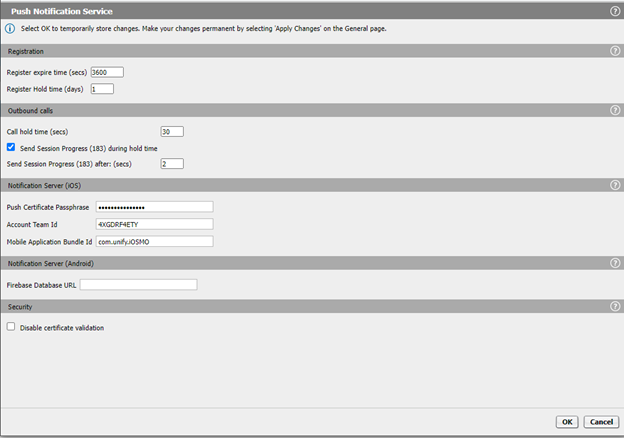
If the configuration of the Notification Server e. g. Push Certificate Passphrase,
Account Team Id or Mobile Application Bundle Id is not set, then please refer to the
OpenScape Mobile Pro Administration Documentation.
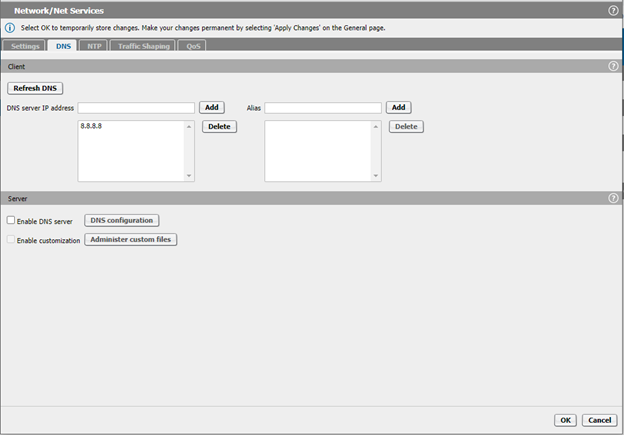
Network/Net Services > DNS
The OS-SBC needs to resolve the hostname of the Apple Push Notification Service,
therefore he needs a connection a DNS server, e. g.
Security > Firewall
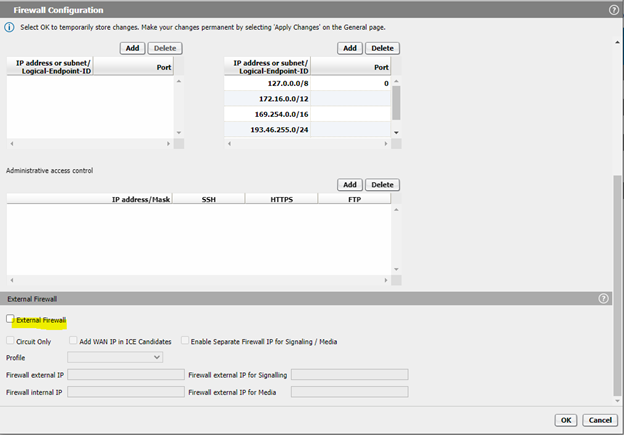
In case the Access Side of the OS-SBC is located in NAT behind an external Firewall,
then please configure the External Firewall IP address accordingly: