2.24. Gateways HG 3500 and HG 3575 - Changing Gateway UI MODE 


IP gateways access can be secured using parameter
UIMODE, which can
be accessed in AMO CGWB and STMIB or from
Assistant (Access Management -> Security Mode
Configuration).UIMODE:
- CLASSICWhen the board is in CLASSIC mode, you can quickly access the SSH, WBM, and SFTP buttons (Remote access) from the Gateway Manager page. You can also use browsers or SSH clients like Putty and WinSCP to access the gateways directly. Other operations that you can perform during CLASSIC mode include Backup & Restore, OS upgrades, Loadware upgrades, Platform HF upgrades, Bootstrapping (DLS SPE), SNMP, and more.There is no filtering based upon the origin/source address of the HTTPS and SSH client.
- MAINTAINWhen the function of the board is changed from CLASSIC mode to MAINTAIN, the same operations that can be performed in CLASSIC mode can also be performed in the Assistant Gateway Manager.
INFO:
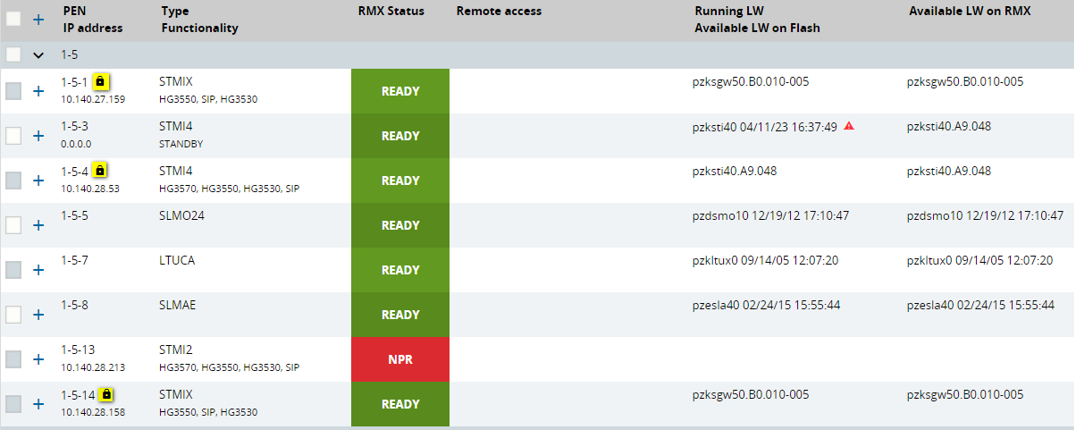
In MAINTAIN mode direct access from Browser and SSH clients like putty, WinSCP is not possible anymore, only via Assistant Gateway Manager.The difference between CLASSIC and MAINTAIN mode in Gateway Manager is that a lock appears in the menu next to the board (see Figure 43) and by clicking that lock from MAINTAIN you can switch the board to SECURE. - SECUREWhen the board has SECURE mode activated, not even Gateway Manager can access the HTTPS or SSH functions. The remote access buttons in the Gateway Manager are no longer available and there is no longer access to the operations presented in the CLASSIC/MAINTAIN mode (backup & restore, OS upgrade, LW upgrade, Platform HF upgrade and so on) (see Figure 44).
IMPORTANT:
The currentStarting with V11, the default UIMODE is changed from “CLASSIC” to “MAINTAIN” .UIMODEconfiguration of any board will not be changed during the update.
CGWB -> MTYPE (CGW) ->
                  MGNTDATA -> UIMODE -> MAINTAIN
.
Assistant – GW
Manager:
A gateway in MAINTAIN/SECURE mode will
display a padlock icon (after board list is updated):
Figure 43. Gateway Manager – Padlock icon after enabling MAINTAIN mode
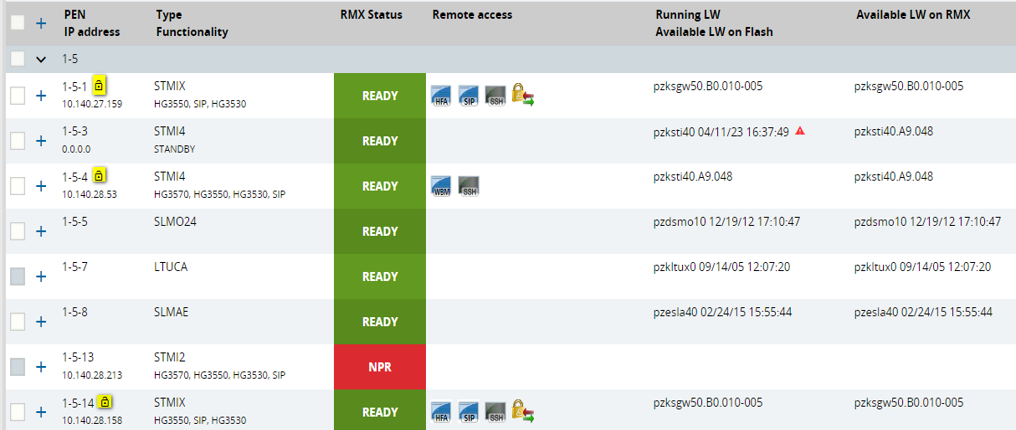
Figure 44. Gateway Manager – Padlock icon after enabling SECURE mode