16.3.3. Mass migration from Circuit 


In the first step, all Circuit users must be added to Unify Video. This can be done
via the Bulk Upload Users of Unify Video or using the Unify Migration
Tool. After you have uploaded the OpenScape license with sufficient Unify
Phone licenses, the Client type of all auxiliary devices used by Circuit can be
changed from OTHER to UNIPHONE using the following AMO Command:
CHA-SBCSU:STNO=<UFIP_STN>, OPT=OPTI, CLNTTYPE=UNIPHONE;
This can be done even if the user is still using Circuit. The registration of a
Circuit client will not be rejected when the auxiliary device is already switched
to
UNIPHONE, but the registration of a Unify Phone client will be rejected if the
CLNTTYPE is OTHER.
It is possible to export all users of the Circuit tenant using a CSV file. This CSV
file can be directly imported in OpenScape 4000 and will have the following
format:
Name,First name,Last name,Location,Role,Status,Created on,First login,Last login,Data usage,Phone number,Package name
max.mustermann@os4k.dev,Max,Mustermann,,,,,,,,4989700732464,
somewhere.else@os4k.dev,Not,Here,,,,,,,,4989700799999,
...
Follow the steps below to import the CSV file:
- Navigate to Configuration Management > Unify Phone.
- Click Choose file under Import CSV, select your csv file and click
Import.
Figure 367. Import a CSV file
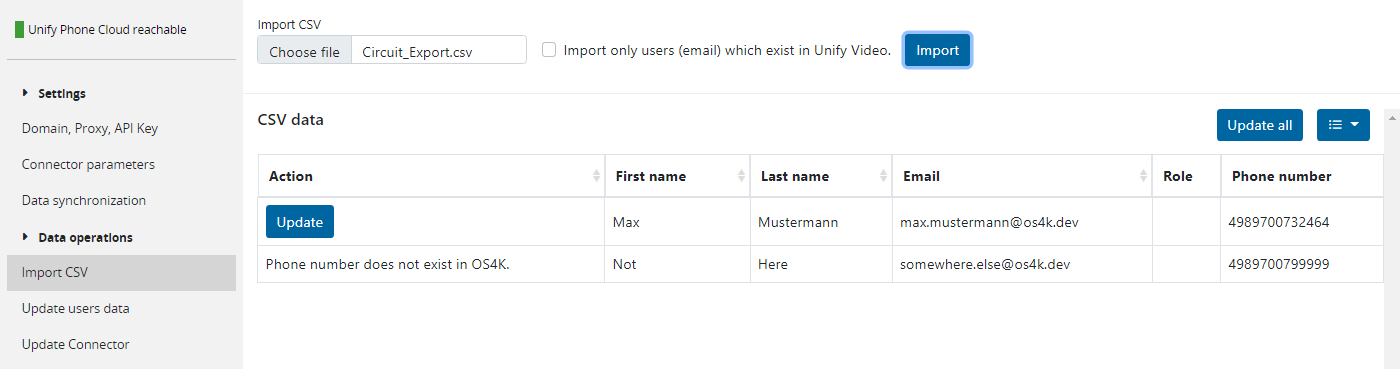
- Click Update all or selective Update to configure the email
address based on the Phone number column. If a phone number
(International Number in Basic 3) does not exist (or exist in another PBX), then
the corresponding row will contain the message Phone number does not exist in
OS4K.
INFO:
This method can also be used if the email addresses need to be configured for many desk devices. - After Data synchronization with the Unify Phone Telephony Connector, the clients can be used.