3.8.3.2.2. Configuring the IPv6 Address for OpenScape 4000 SoftGate
Trunking Gateway (Next Generation Server) 


Configuring the IPv6 address for the OpenScape 4000 SoftGate trunking
gateway is performed in the Next Generation Server via the OpenScape
4000 Platform Administration (Portal).
Following a restart, the vHG 3500 registers with the Next Generation
Server and creates an entry for itself with its IPv4 address. An IPv6
address can now be configured in the Next Generation Server for the vHG
3500. Following configuration of the IPv6 address, a restart has to be
performed for the vHG 3500 (RES-BSSU).
The Next Generation Server is the central point for IPv6 configuration.
All IPv6 addresses are configured here.
IMPORTANT:
The NGS IP address has to be configured using
the OpenScape 4000 Platform Administration (Portal). It will then be
automatically entered into AMO SIPCO and propagated to all SoftGates.
The SoftGates need a Restart to get a new/ changed NGS IP address. Entering
a NGS IP address in the WBM of each individual SoftGate is not necessary
and not possible anymore.
The NGS can be reached via OpenScape 4000 Platform Administration
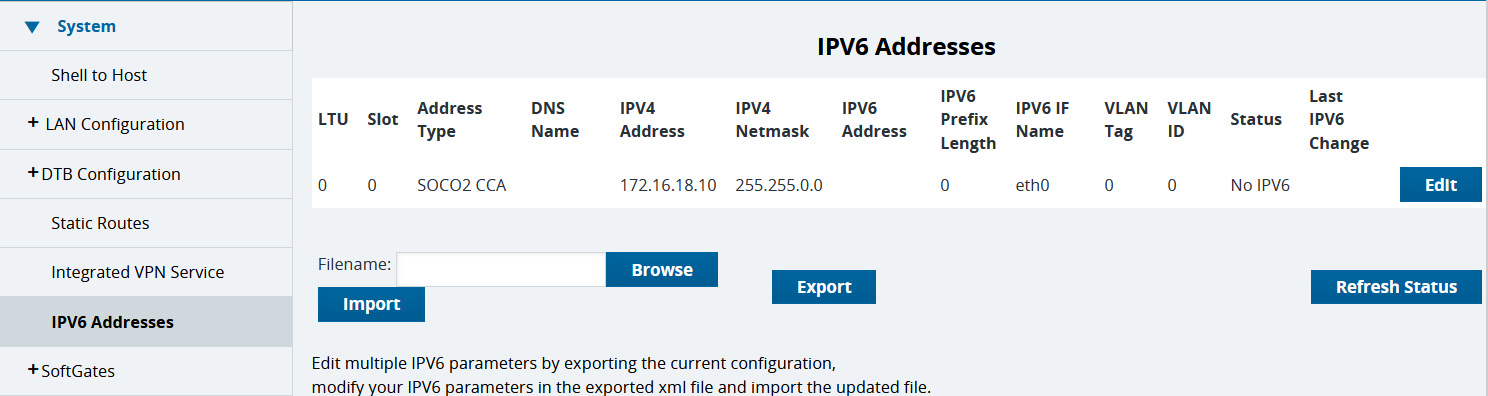
(Portal) > System > IPv6 Addresses.
Once a virtual HG 3500 is configured as IPv6 or Dual Stack, it can
be assigned an IPv6 address in the NGS table.
OpenScape 4000 Platform Administration (Portal) > System >
IPV6 Addresses
Figure 109. IPv6 address for vHG 3500
OpenScape 4000 Platform Administration (Portal) > System >
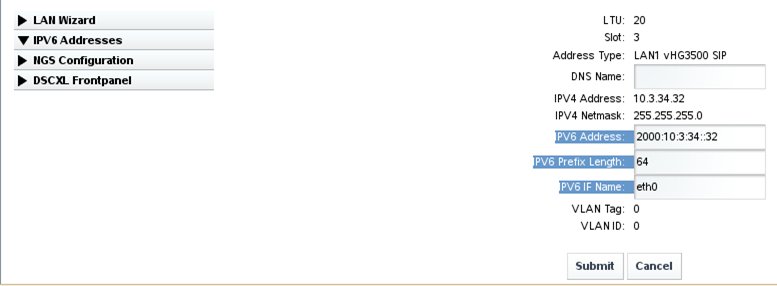
IPv6 Addresses > Edit
The IPV6 Address, IPV6 Prefix Length and IPV6 IF
Name must be specified for the IPv6 trunking gateway. A DNS Name
can be configured optionally.
IMPORTANT:
The DNS Name string is used in the contact
field of SIP messages. There is no resolution of the DNS name in the
vHG3500 and no consistency check between the DNS name and the configured
IPv4 or IPv6 address. The interface name (IPV6 IF name) must correspond
to the IP interface on the OpenScape 4000 SoftGate/OpenScape 4000 system
(Linux OS), i.e. eth0, eth1, etc.
Figure 110. Options for IPv6 gateway
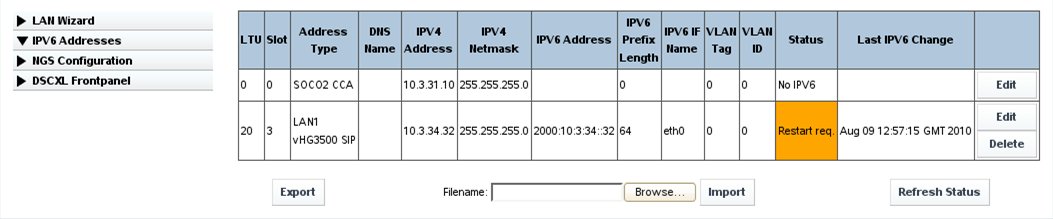
After configuring the IPv6 parameters, the trunking gateway has to
be restarted (via AMO).
OpenScape 4000 Platform Administration (Portal) > System >
IPV6 Addresses
Figure 111. Status of IPv6 gateway (restart required)
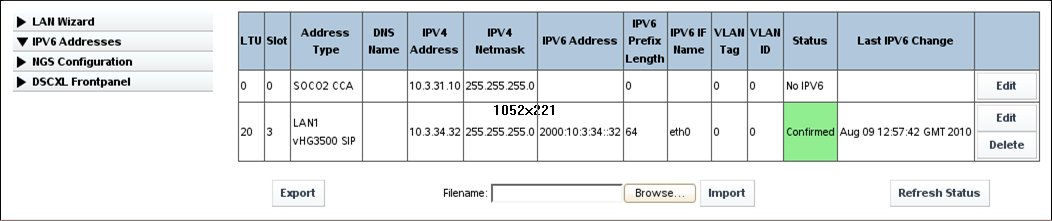
After the restart, the status of the IPv6 trunking gateway should
be "Confirmed".
OpenScape 4000 Platform Administration (Portal) > System >
IPV6 Addresses
Figure 112. Status of IPv6 gateway (confirmed)
The Status field displays the configuration state of the IPv6
addresses, separately for each line of the IP address table:
- Changed (orange)
-
An element of the IPv6 address data (IP address, prefix length, or interface name) has been modified.
- Fetched (yellow)
-
The modified IP address data has been retrieved by the corresponding host (OpenScape 4000 SoftGate or OpenScape 4000 system). The NGS server now waits for an acknowledgment returned by the retrieving host, which is sent when the configuration of the modified IP address data on that host is completed.
- Confirmed (green)
-
The retrieving host has acknowledged the successful setting of the modified IP address data.
- Failed (red)
-
The retrieving host has returned a negative acknowledgment due to errors while setting the modified IP address data.
Information for "delete" button
The "Delete" button, corresponding to an entry in the NGS table, will
only delete the selected entry in the portal / NGS database. It will
not change the primary IP mode configuration in the OpenScape 4000 system
database.
If the selected entry is still an active OpenScape 4000 SoftGate,
whose IP mode should be changed from "IPv6 only" or "dualstack" to "IPv4
only", it is mandatory to change the IP mode with the appropriate AMOs
(CGWB, STMIB) before. Otherwise the entry will re-appear without an IPv6
address after a restart.
This delete operation is mainly intended for entries (e.g. OpenScape
4000 SoftGates) which are not active anymore (e.g. powered off) and should
be purged from the database.
Information on backing up and restoring the Next Generation Server
can be found in Section 12.3.4,
“NGS Backup and Restore”.