14.8.5.2.3. Create Voice Policy 


Users assigned to specific voice policy will be able to dial out through
the Direct SIP connection to the OpenScape 4000 system.
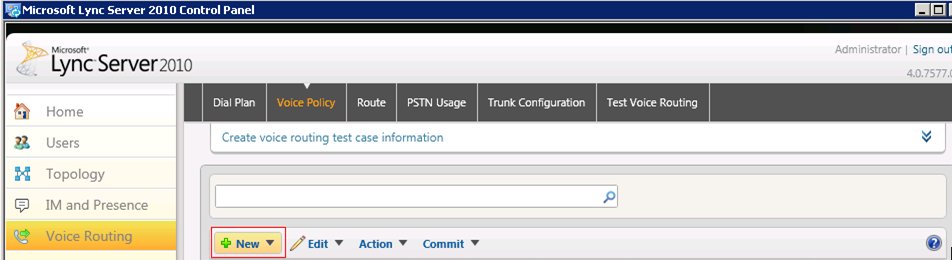
- Voice Routing > Voice Policy tab
- Click New. Depending on the scope of the policy you want to create click Site Policy or User Policy.
Figure 317. MicrosoftLync Server - Create voice policy
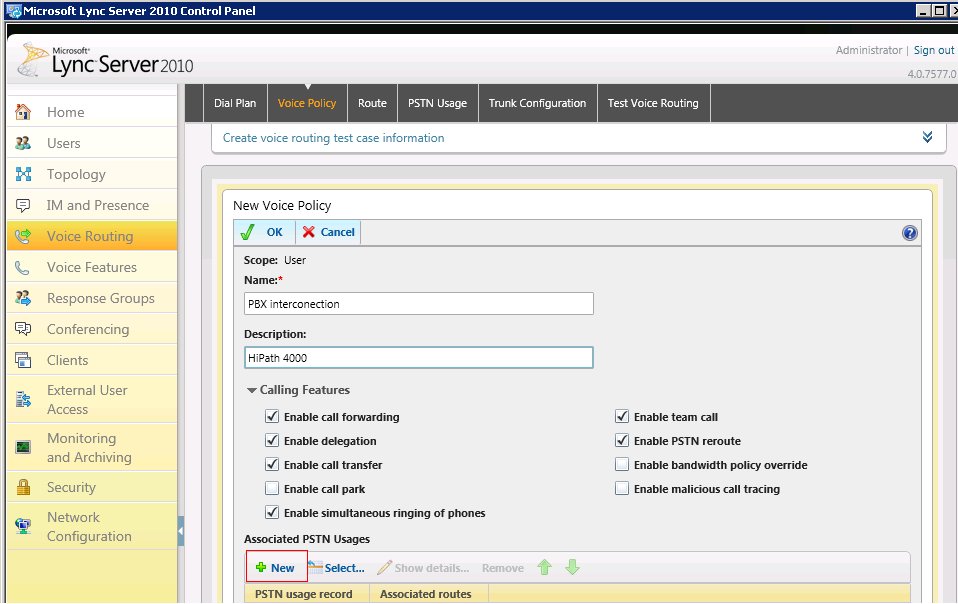
- Specify a unique name for this voice policy and provide a description.
- To create a new PSTN usage for this policy click New.
Figure 318. Microsoft Lync Server - Create new PSTN usage
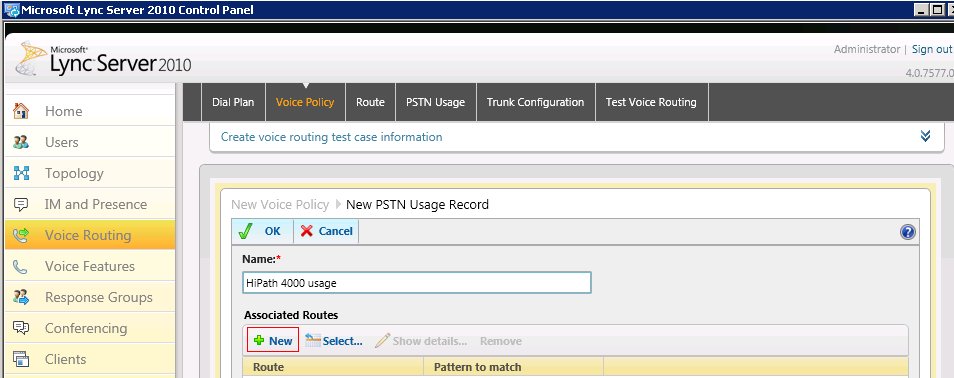
- Specify a name for the new PSTN usage record. The name must be unique to this specific voice policy. Also, provide a detailed description of the PSTN usage record.
- To assign a route to this PSTN usage click New.
Figure 319. Microsoft Lync Server - Assign a route to the PSTN usage
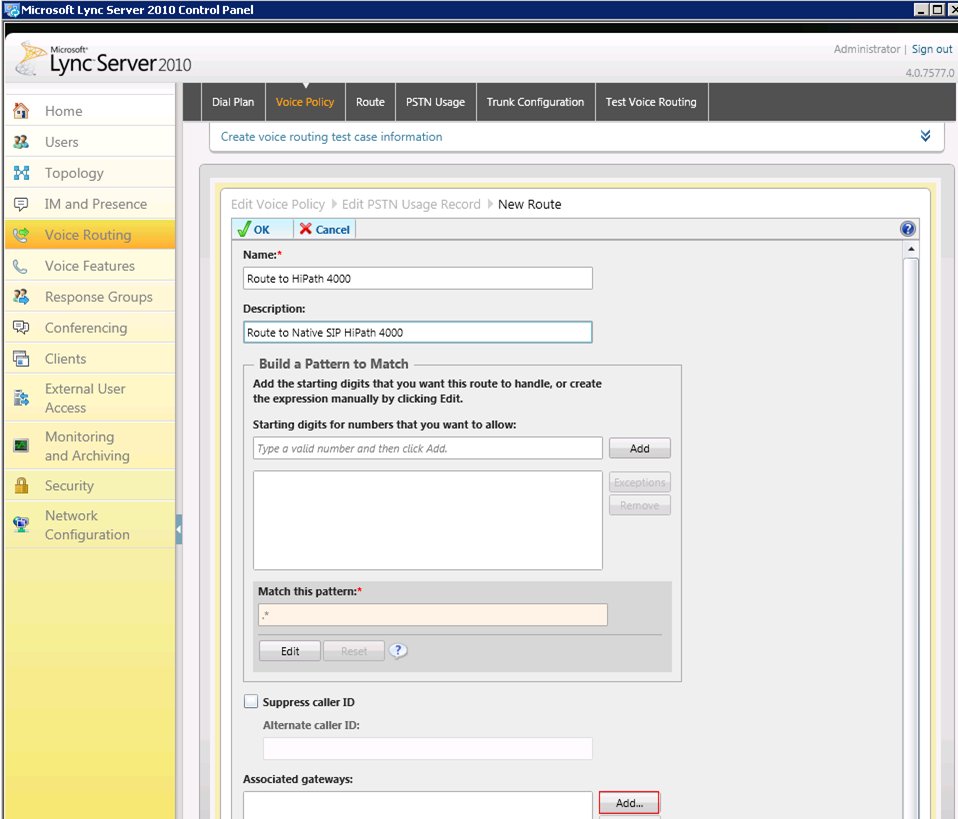
- Specify a name for this route, and provide a meaningful description.
- To assign the OpenScape 4000 gateway to this new route click Add.
Figure 320. Microsoft Lync Server - Assign the OpenScape 4000 gateway to the route
- Select the OpenScape 4000 gateway you created earlier.
- Click OK in all different dialog boxes to complete the creation of the voice policy.
- To commit your changes click Commit and then Commit all.