14.9.3.4. Adding OpenScape 4000 vSTMI as a gateway to the Skype for Business
Server 2015 Topology 


- Start Topology Builder: Click Start, click All Programs, click Microsoft
Skype for Business Server 2015, and then click Skype for Business Server
2015 Topology Builder.
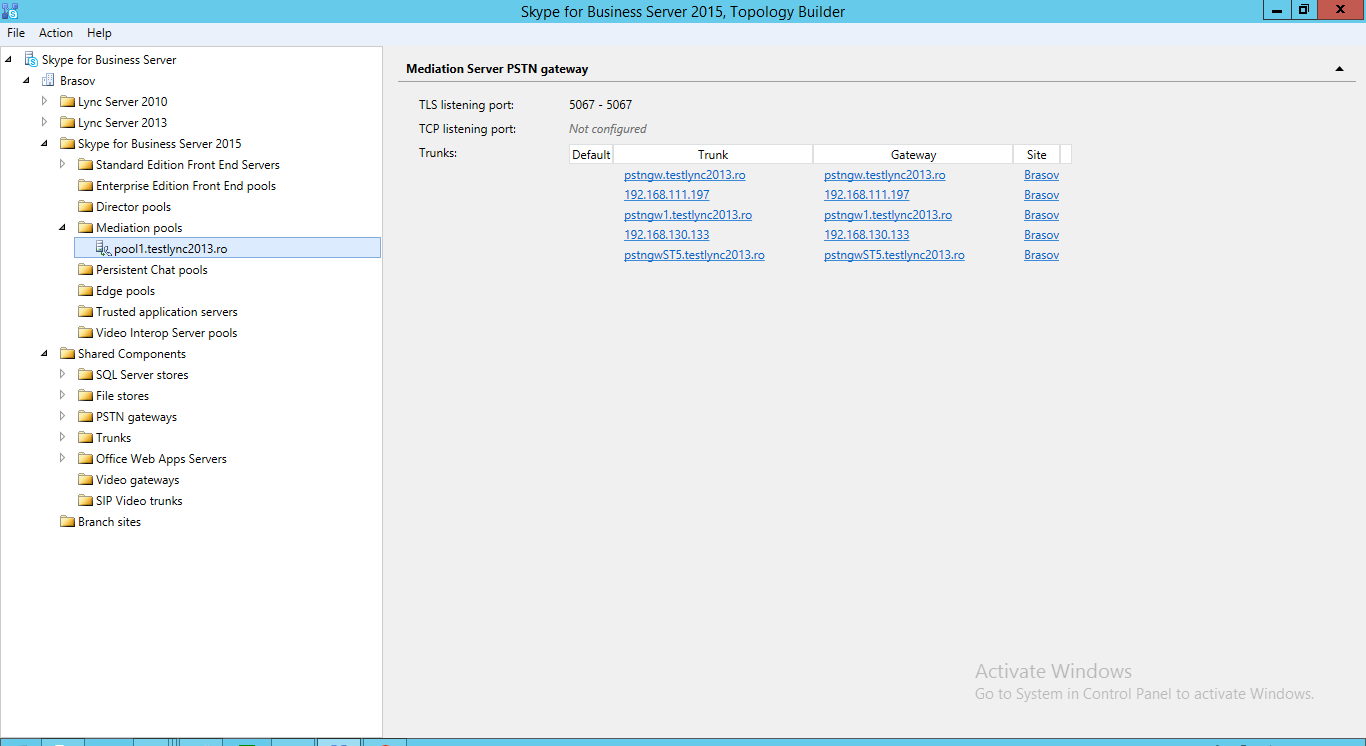
- Expand the Mediation pools node.
- Right-click the Mediation pool, and then click Edit Properties.
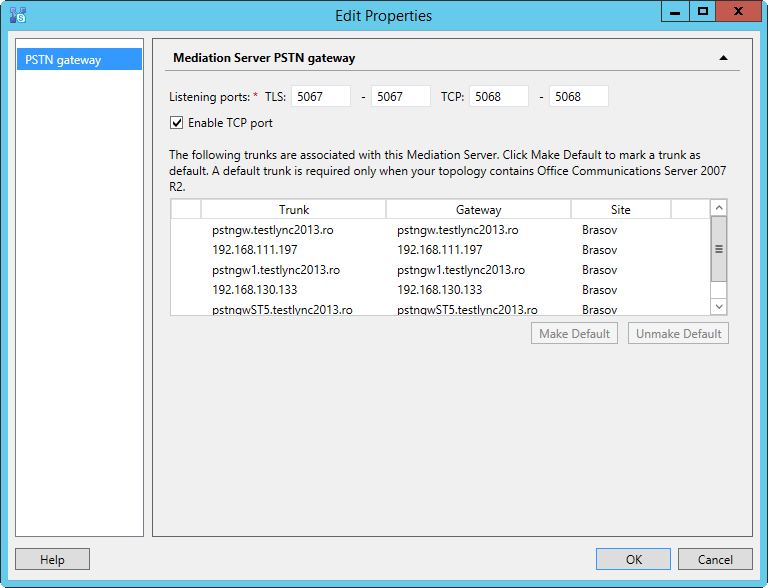
- In Mediation Server PSTN gateway check Enable TCP port and set as Listening
ports 5067 – 5067 for TLS and 5068 - 5068 for TCP. Once a new gateway
will be defined, it will appear here.
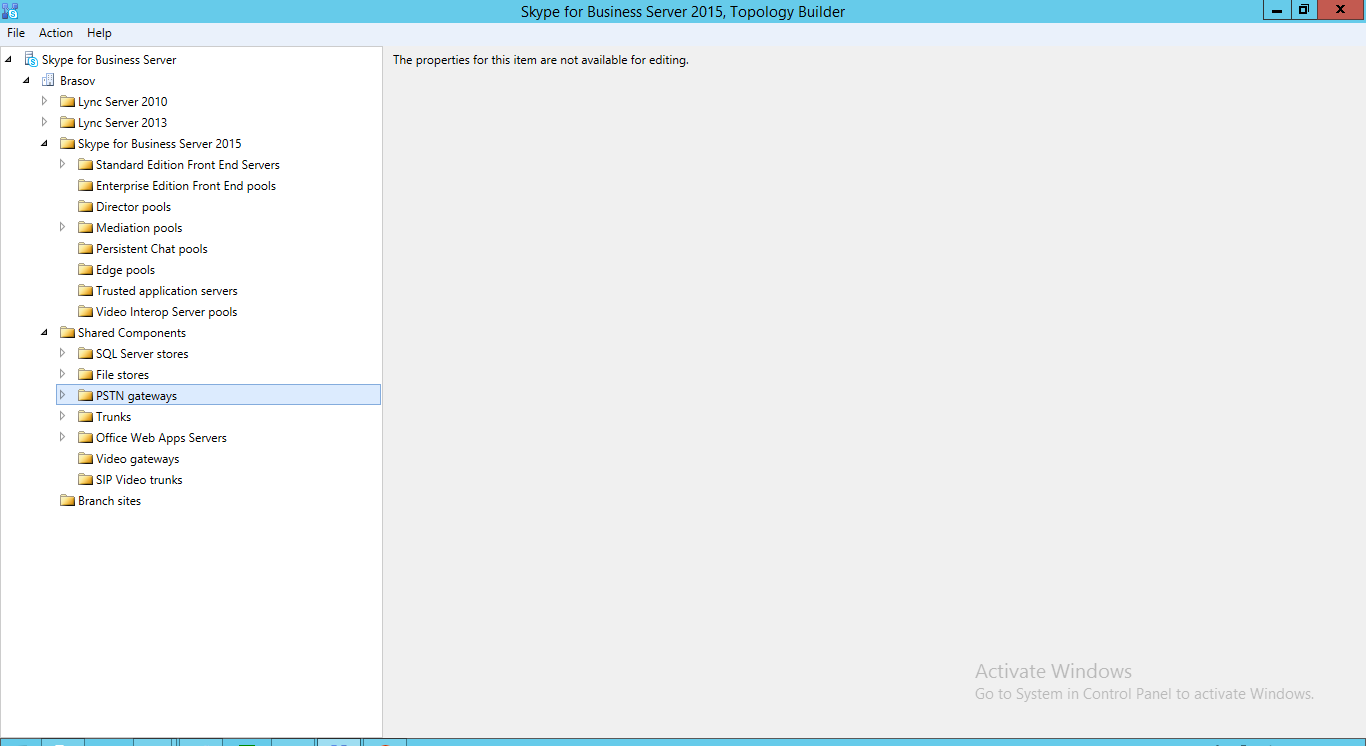
- In the PSTN Gateway box, do the following: Right click on PSTN Gateways
and select New IP/PSTN Gateway
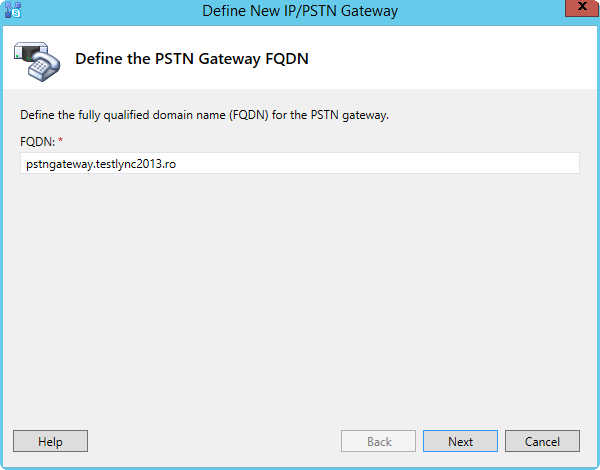
- In the Define New IP/PSTN Gateway dialog box, do the following:
- In Define the PSTN Gateway FQDN specify the IP address or FQDN of the
OpenScape 4000.
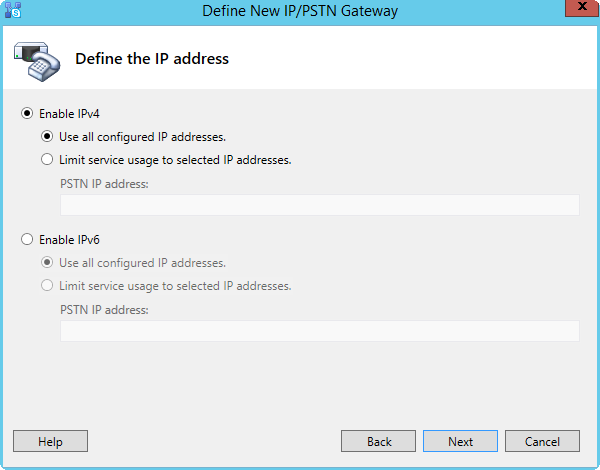
- In Define the IP address select Use all configured IP addresses if
the gateway is defined in DNS, or Limit service usage to selected IP
addresses to set the IP manually.
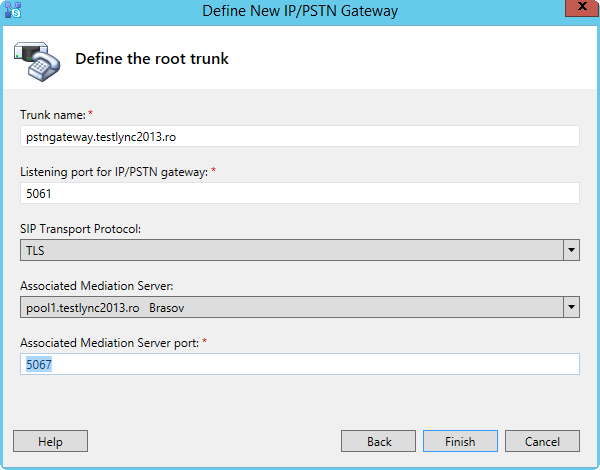
- In Define the root trunk, at Listening port for IP/PSTN gateway set
the port to 5060 for TCP connection, or 5061 for TLS connection.
- Under Sip Transport Protocol, click TCP for unsecure connection,
or TLS for secure connection.
- In Associated Mediation Server select the mediation server.
- In Associated Mediation Server port select 5068 for TCP connection,
or 5067 for TLS connection.
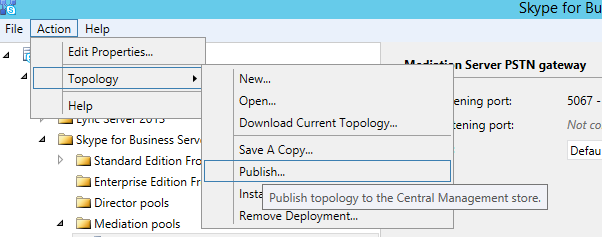
- To publish your change to the Skype for Business Server 2015 topology,
in the Action panel of the Topology Builder, point to Topology, and then
click Publish.