11.3.1.1. Configuring an AP Backup Server with OpenScape 4000
Assistant Backup & Restore 


In the first configuration step, you define where the OpenScape 4000
backup data should be stored. To do this, you must specify the computer
that should act as the file server (AP backup server), the directory
where the data should be stored, and the login data for access. Configuration
on the file server (create the directory, define the user ID) should
be completed before the configuration as part of OpenScape 4000 Assistant
Backup & Restore.
- Use the Web browser to display the OpenScape 4000 Assistant start page
and log in with the user ID “
rsta“. - In the left menu bar, select the function area Software Management.
- Select the application Backup & Restore provided as a submenu option under Software Management.
- In the Backup & Restore user interface, select the function AP Backup Server under Administration.
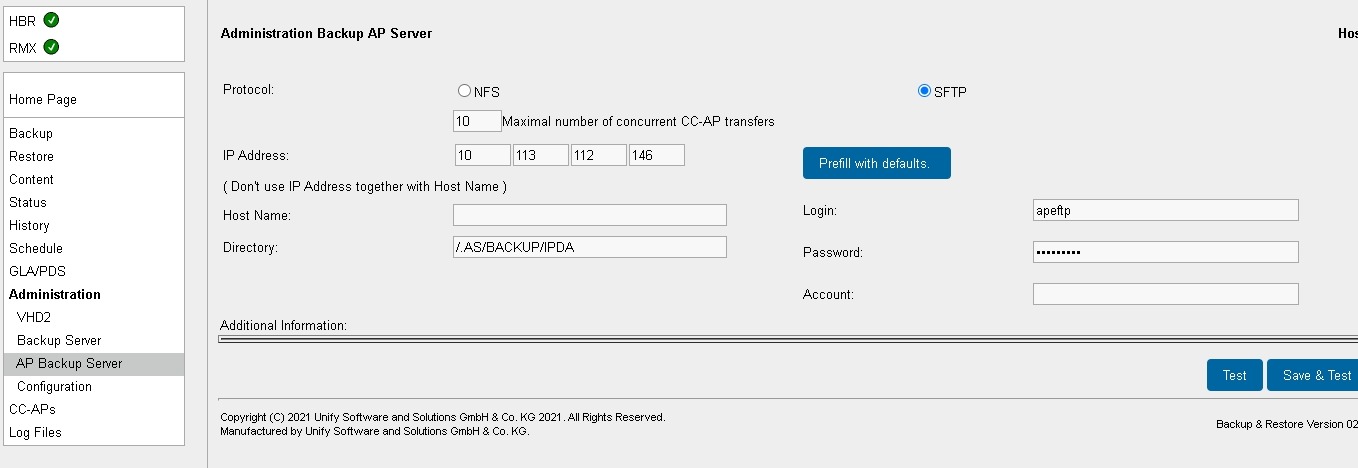
Figure 212. OpenScape 4000 Assistant Backup & Restore: configuring an AP backup server
-
The following fields must be now be completed:
- Select the Protocol (SFTP or NFS) - typically: SFTP
If you want to configure the AP backup server on the OpenScape 4000 host system, you must select SFTP as the protocol.- Maximum number of concurrent CC-AP/Survivable OpenScape 4000 SoftGate transfers
In the maximum configuration, 83 CC-APs may want to sign on to the AP backup server and download the latest backup set simultaneously. If the server does not support this large number of simultaneously logged-in systems, or if you want to reduce possible load peaks on the server, you can adjust the maximum number of simultaneously logged-in CC-APs accordingly. Dependencies are shown in “Section 3.1, “Basic conditions regarding timing”“.- Enter the IP Address or Host Name of the AP backup server
You can only enter a host name if either it is configured directly in UBA or if the name resolution is configured with DNS.- Enter the Directory on the AP backup server that should be used for the backup and restore
If you want to configure the AP backup server on the OpenScape 4000 host system, you must select the directory already provided for this purpose (“/.AS/BACKUP/IPDA“ ).The directory must be able to hold approximately 100 MB of data.- If you selected SFTP as the protocol, you still need to configure the Login name and the Password for accessing the AP backup server (SFTP server). If the SFTP server requires an Account, this also needs to be entered.
If you want to run the AP backup server on the OpenScape 4000 host system, for security reasons you should configure the login underapeftp. You do not need to configure an account in this case.IMPORTANT:
Remember that the login password for the AP backup server must be maintained, both on the backup server and in the OpenScape 4000 Assistant Backup & Restore configuration of the OpenScape 4000 host system and the CC-APs.Complete the AP backup server configuration with
-
Save & Test - Save the configuration and test the access to the AP backup server.You should always use this option if the file server is already available when it is configured in the network.
- Test - Test the configuration without saving it. Input will revert after the test.
Use this option only for diagnostic purpose, when you do not want to clear a previously saved setting.In this way, the memory is configured for backup.