18.6.1.4. Distribution of the SPE Certificate 


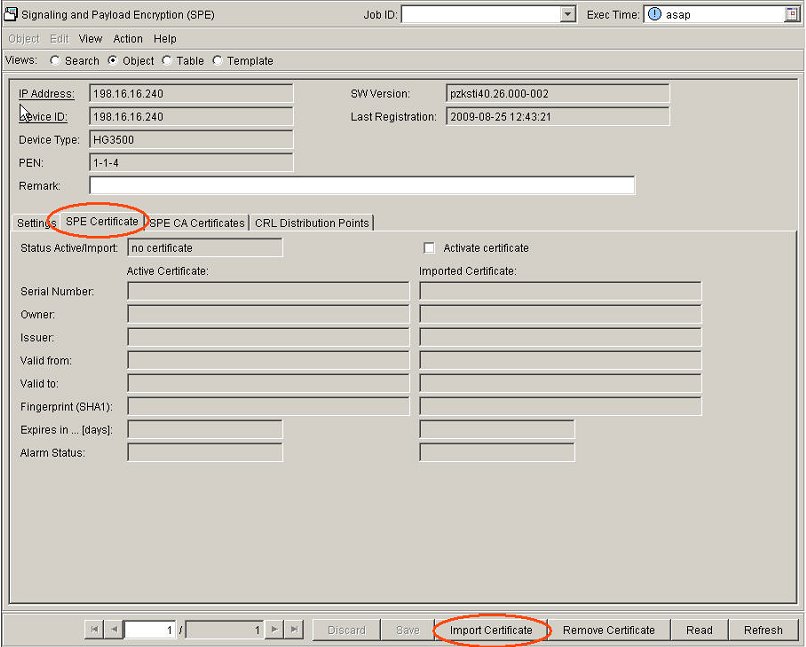
Import SPE certificate: IP Devices > IP Gateway Configuration
> VoIP Security > tab Credentials
Figure 392. Browse for the certificate.
The importing and activation of the certificate can be combined in
one step.
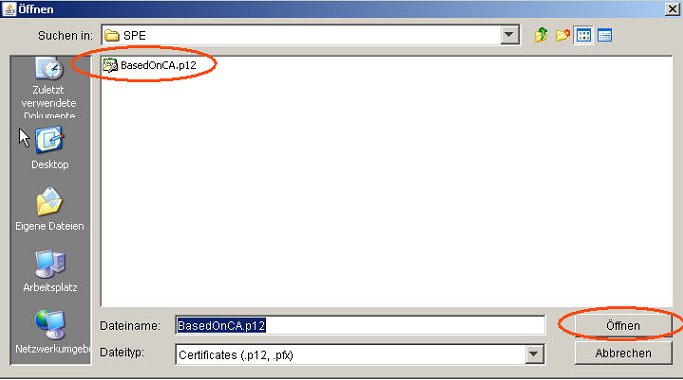
Figure 393. Select the certificate.
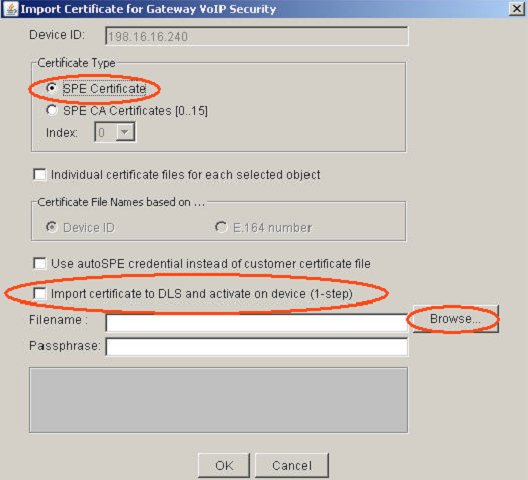
Passphrase
is the password which is used to encrypt the content of the p12 file.
It is created when the p12 file was created.
IMPORTANT:
Don't confuse this passphrase with the passphrase
configured in Assistant and used to activate Secure Trace. These two
passphrases have nothing to do with each other.
Figure 394. The certificate has been successfully imported.
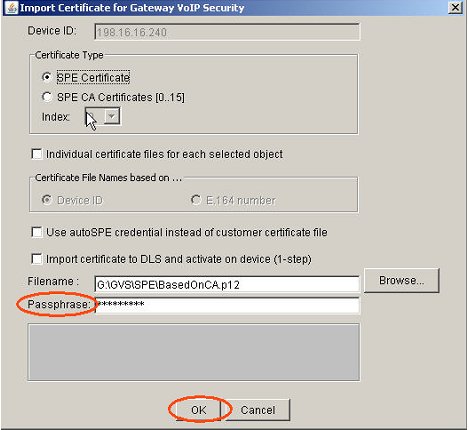
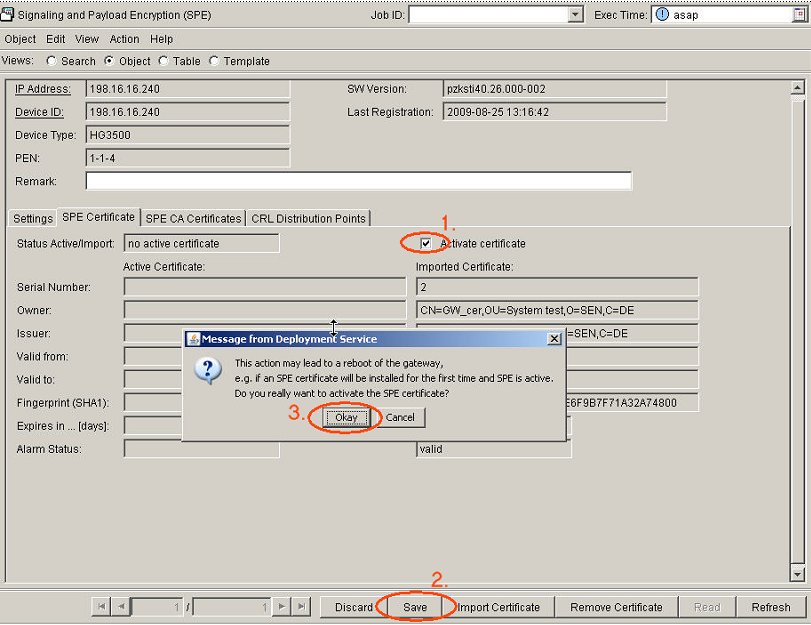
Figure 395. Activate the certificate.

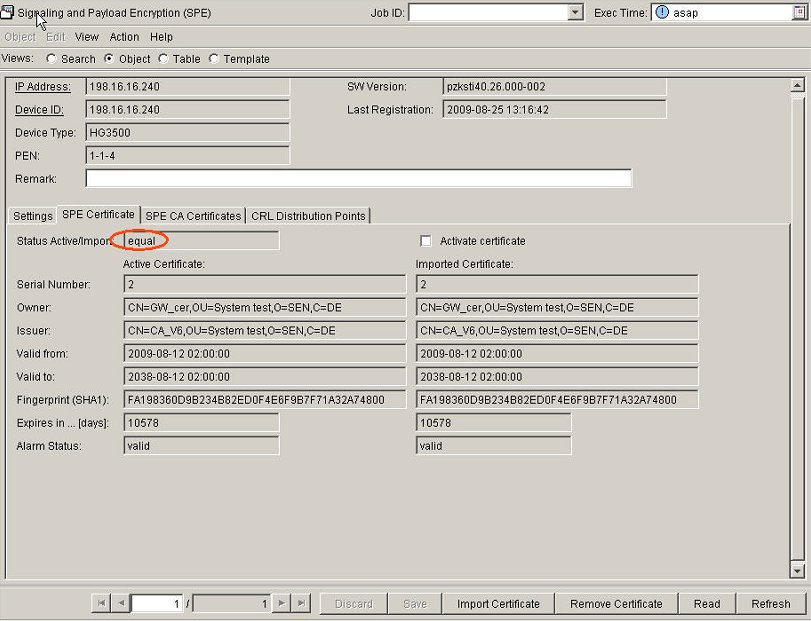
Figure 396. Certificate is active. Status (Status active/Import) is equal.
You
can use the WBM application in HG 3500/3575 V4 and newer to check if
the import operations worked properly and the certificates were activated.
Access is possible with the HiPath 4000 Assistant.
Menu: Menu: Expert Access > HiPath 4000 > HG35xx
Web Based Management
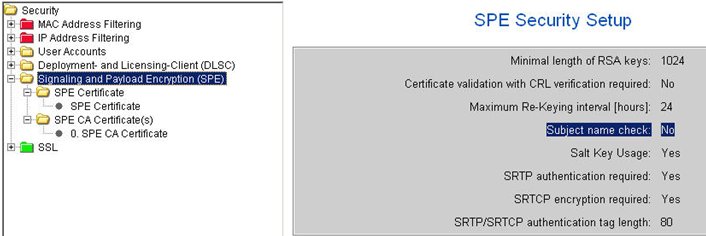
In the WBM you can view the certificates in the following directory:
-
Configuration > Security > Signaling and Payload Encryption (SPE)There should be two entries:
- SPE Certificate
- SPE CA Certificate(s)