16.3.1.2. Configure OpenScape 4000 


Configure access to Unify Phone Telephony Connector
- Open the OpenScape 4000 Assistant and navigate to Configuration Management > Unify Phone to configure the connectivity to the Unify Phone Telephony Connector.
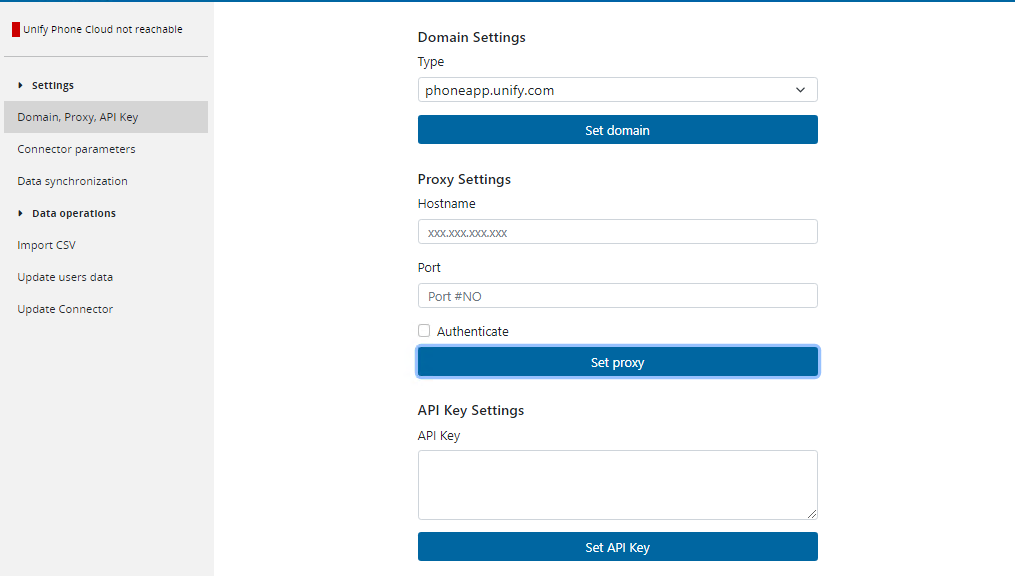
- Check the status of Unify Phone Cloud in the upper
left corner of the window:
- Unify Phone Cloud not reachable means that you might need to configure a proxy to reach the Internet.
- No or wrong API key means that the connector is reachable but you have not entered the API Key of your tenant.
Figure 350. Unify Phone Cloud status
- Login to the Unify Phone Telephony Connector via https://phoneapp.unify.com/tenant/ with a super admin
account.
From the Telephony connector tab, you can copy the API key, then paste it into the API key field and click Set API Key.If the API key is correct, the status will change to green Unify Phone Cloud reachable. After setting the API key, the input will disappear for security reasons.
Configure CICA
Unify Phone requires an active CICA connection for all Gateways where auxiliary
devices are configured to forward CSTA messages between client and CSTA. Without
an active CICA connection, Unify Phone cannot register and will display
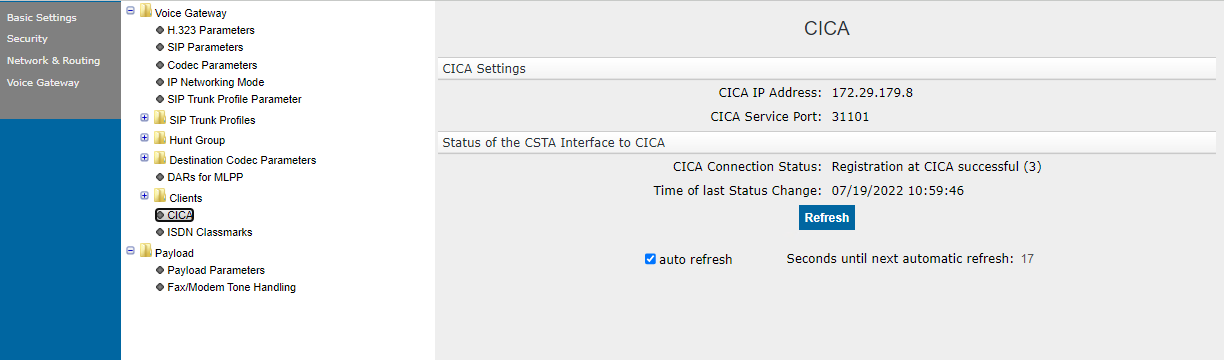
Telephony is down. The Gateways connect to CICA service port 31101
via VPN for security reasons. For more information, refer to the "Integrated VPN
Service" chapter in the OpenScape 4000 V10, Platform Administration (Portal)
document.
The status can be checked in the WBM area of the Gateways:
Figure 351. Configure CICA
CICA is a special application in CSTA. By default it uses port 1040 of the
Default Connectivity Adapter, but Unify Phone requires the Circuit
profile. (E164_NUMBER_FORMAT=1, OFFERED_MODE_NEEDED=1, ONS_MONITORING=1).
If the Default Connectivity Adapter is used for other applications, it is
recommended to create a dedicated Connectivity Adapter with the Circuit profile
on another port. For this, follow the steps below:
- Navigate to Expert Mode > CSTA and click on Add Connectivity Adapter.
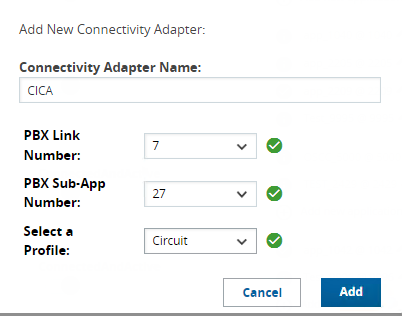
- Select an available PBX Link Number (e.g. 7) and PBX Sub-App
Number (e.g. 27), then select the Circuit profile, as
displayed in the figure below.
Figure 352. Connectivity Adapter Name
 Click Add.
 - In CSTA Administration > Connectivity Adapters, click the
Add a new application button, next to the Connectivity Adapter
created in the previous step.
Figure 353. Add a new application in CSTA Administration

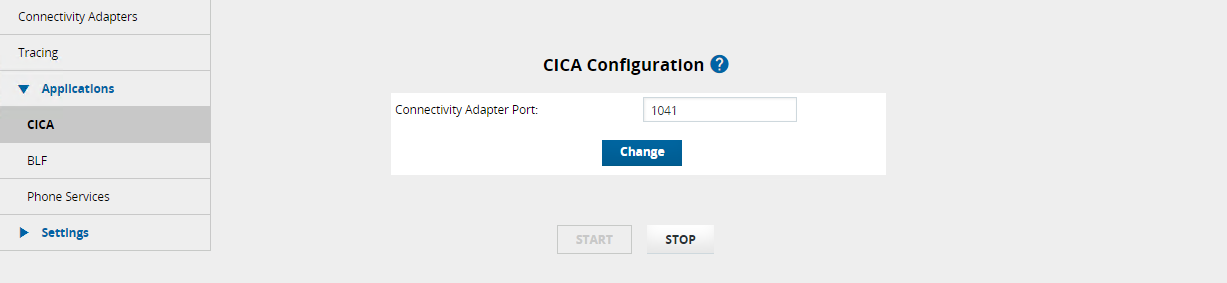
- Define a port (e.g. port 1041) for CICA and configure the same port on the
CICA Configuration page.
Figure 354. Define the CICA port
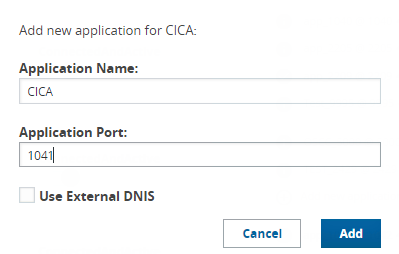
Figure 355. CICA Configuration port
Configure an external SBC address
Unify Phone will always be securely configured (TLS) by OpenScape 4000. The
external IP of the SBC (in case of NAT, it is the Firewall external IP) and the
SIP TLS port must be configured in OpenScape 4000 Assistant (similar to OSMO) in
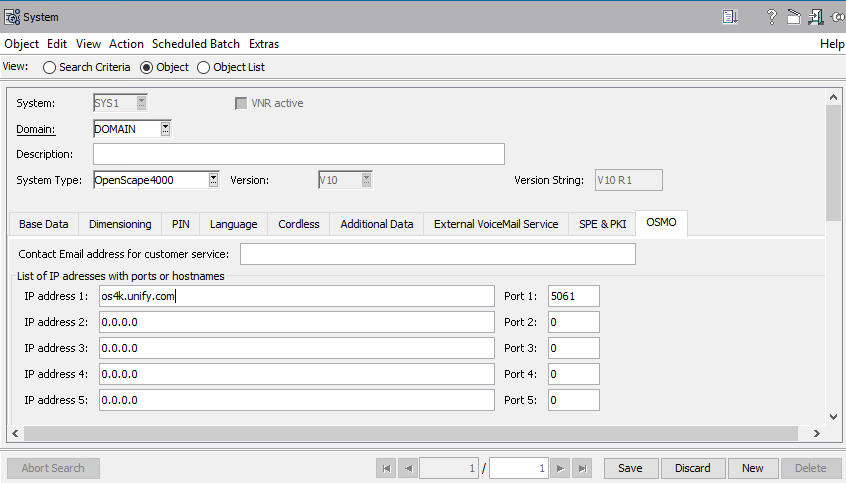
AMO-ZANDE, on the OSMO branch. Only IP address 1 will be used for Unify Phone.
You can configure either an FQDN name or an IP address using:
- The AMO-ZANDE
command:
CHANGE-ZANDE:TYPE=OSMO, SBCFQDN1="os4k.unify.com", SBCADDR1=0.0.0.0, PORT1=5061;
- The OpenScape 4000 Assistant or Manager, by navigating to Configuration
Management > Network > System, as displayed in
the figure below.
Figure 356. Configure IP Address 1 in the Configuration Management
Configure the feature list
To use the OpenScape 4000 features in Unify Phone, configure the AMO ZANDE branch
OSMO FEATLIST using the following command:
CHANGE-ZANDE:TYPE=OSMO,FEATLIST=CF&SST&HF&SIP&SEHO&SDND&CSC&FC1&GPC;
The feature list contains the following:
- Call Forwarding CF
- Single Step Transfer SST
- Handover from HF
- Sip Over Data Connection SIP
- Seamless Handover SEHO
- Snooze DnD SDND
- Consultation Call CSC
- Call Forwarding Circuit1 FC1
- Group Call GPC