14.11.3.3. Certificates 


Microsoft Phone System Direct Routing interface allows only TLS connections for SIP
traffic from the SBCs with a certificate signed by one of Microsoft’s trusted
Certification Authorities.
The certificate needs to have the SBC FQDN as the common name (CN) in the subject
field. Certificates with a wild card in the certificate Subject Alternate Name field
conforming to RFC2818 are also supported.
For more information about the certificate and current Microsoft supported
Certification Authorities, refer to Microsoft site:
For the OpenScape SBC TLS interconnection to Microsoft Phone System, 3 files in pem
format are required from the Certification Authority:
- CA certificate (e.g. ca_chain.pem)
- Server certificate for OS SBC (e.g. certificate.pem)
- OS SBC server certificate private key used for the CSR to CA (e.g. privatekey.pem)
The above files must be uploaded to OS SBC and used for the TLS connection with the
Microsoft Phone System interface. For this, follow the below procedure:
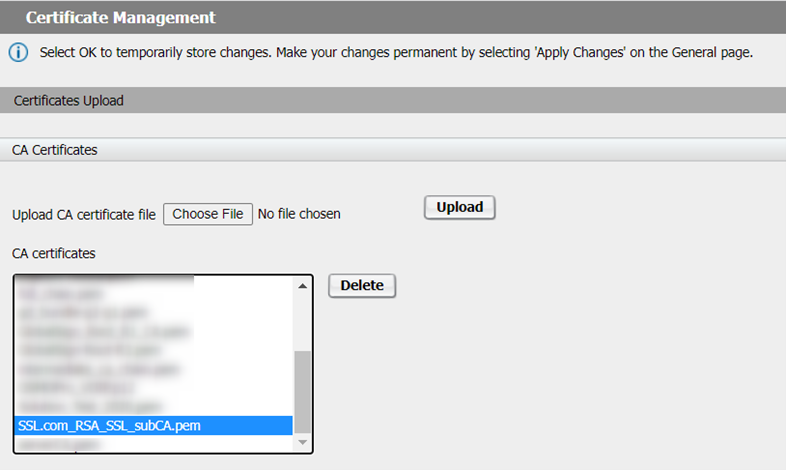
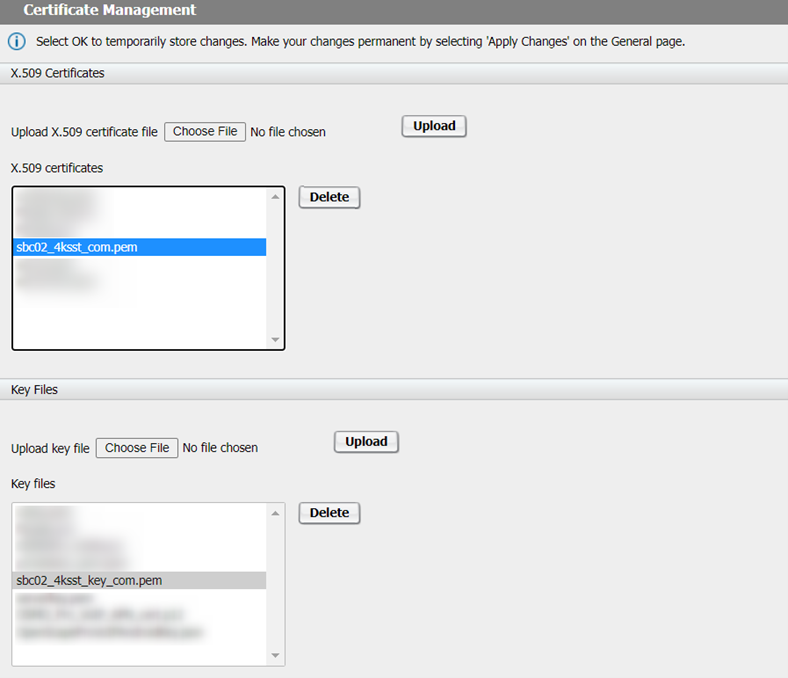
- Navigate to OS SBC Management Portal > Security > General and click on Certificate Management
- Upload the SSL.com_RSA_SSL_subCA.pem file to CA Certificates, the
sbc02_4ksst_com.pem file to X.509 and the
sbc02_4ksst_key_com.pem file to Key Files, as shown in the
figures below:
- In the same window, click the Add button to create the certificate profiles.
Figure 331. Certificate Profile
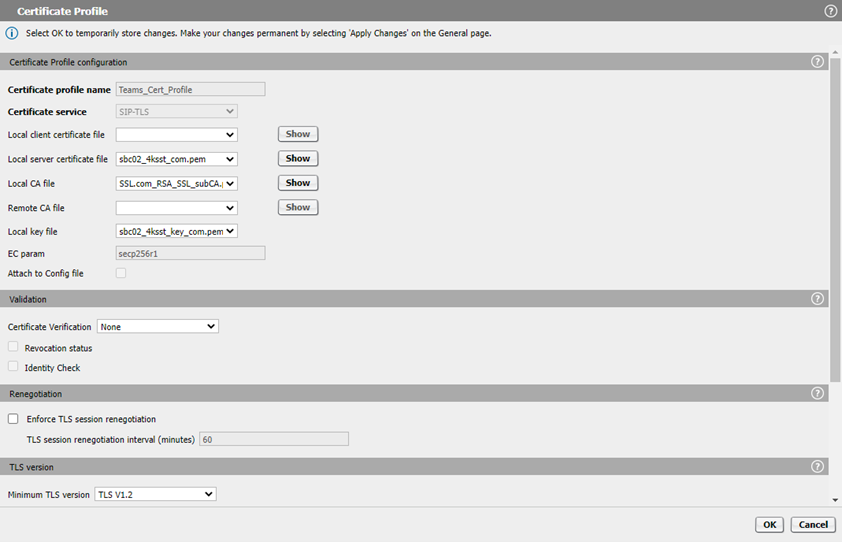
- In the Certificate Profile window, enter the following parameters:
- Certificate profile name: Teams_Cert_Profile (friendly name)
- Certificate service: SIP-TLS
- Local server certificate file: certificate.pem
- Local CA file: ca_chain.pem
- Local key file: privatekey.pem
- Minimum TLS version: TLS V1.2
- Click the OK button.
- In the Certificate Management window, click the OK button.
- In the Security window, click the OK button.
- In the OS SBC main page, click the Apply Changes button.