18.6.1.2. Scanning the IP Devices (IP Gateways) 


Bootstrapping: By scanning the IP devices (gateways), the DLS sends
a certificate to the gateway to prepare a secure connection for importing
the customer certificates (CA and certificate).
The scanning action is the same regardless of which mode is being
used (No PIN, Default PIN or Individual PIN).
There are 2 possibilities to do the SCAN.
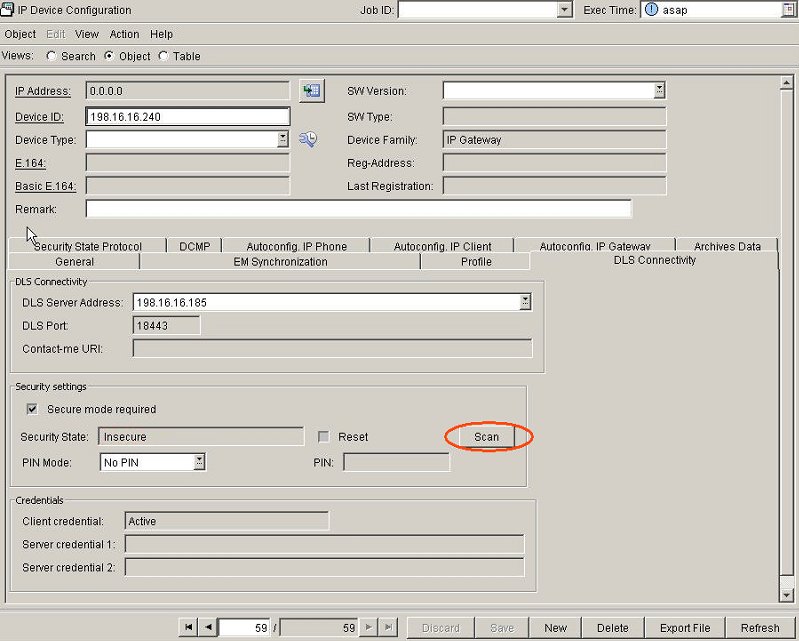
- Scanning individual gateways one by one
-
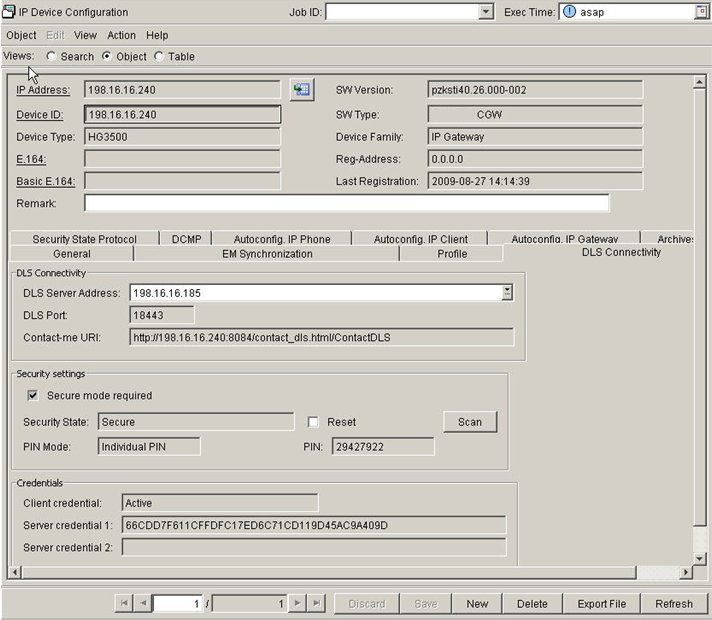
After pressing the Save button to save the configuration, you can press the Scan button and the configured gateway will be scanned right away.
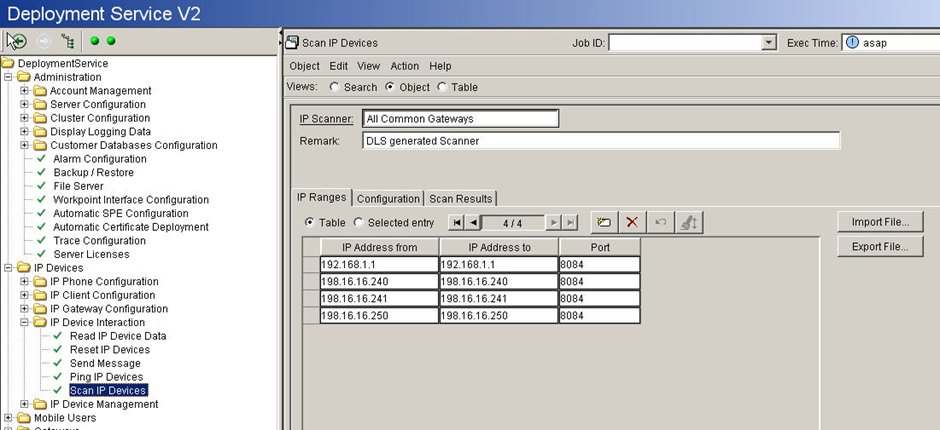
- Group scanning of gateways in one run
-
After the scanning has been done, the next step will depend on the security mode used:
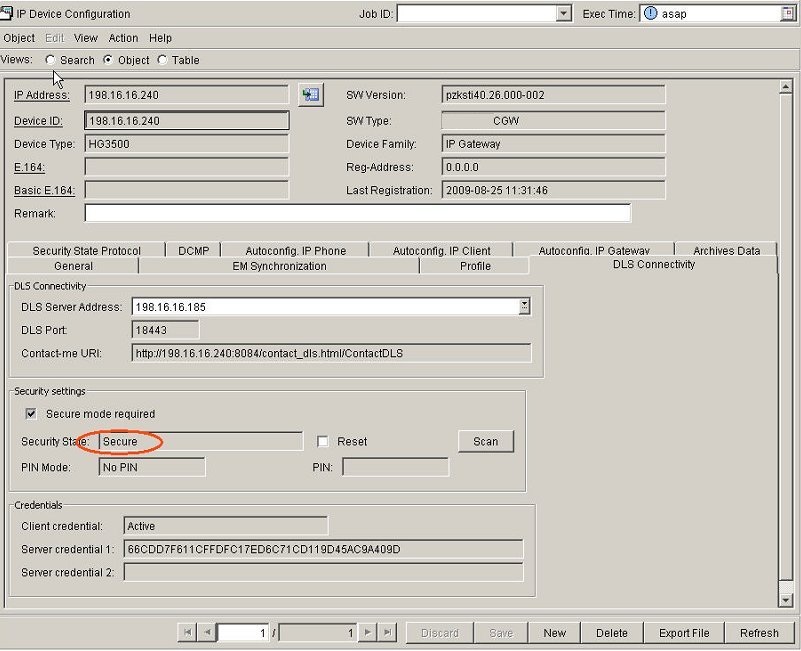
- When NO PIN mode is used, IP Device Configuration > DLS Connectivity > Security State will show Secure. Now bootstrapping for this mode is finished and you can proceed with the distribution of SPE CA certificate and SPE certificates (see Section 7.1.3, “Distribution of the SPE CA Certificate” and Section 7.1.4, “Distribution of the SPE Certificate”).
 When Default PIN or Individual PIN security mode is used, the Security State Pending is shown after scanning.
Figure 387. The PIN must be entered on the gateway via CLI.
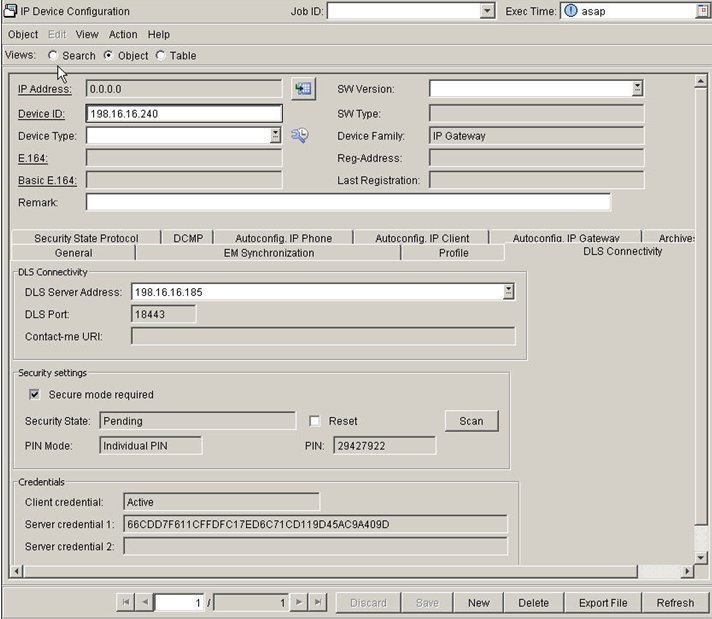 CLI command:vxTarget> activate dls pin 29427922activate dls pin - args: 29427922.Bootstrapping succeeded.OKvxTarget>There is no CLI with virtual gateways. The PIN must therefore be entered in a WBM screen.If you now go back to DLS DLS Connectivity > Security State, the gateway will show Secure. Bootstrapping is now finished and you can proceed with the distribution of CA and SPE certificates (see Section 7.1.3, “Distribution of the SPE CA Certificate” and Section 7.1.4, “Distribution of the SPE Certificate”).
Figure 388. Bootstrapping final verification in gateway WBM:
 You can use the WBM application in HG 3500/3575 V4 and newer to check if the import operations worked properly and the certificates were activated. Access is possible with the HiPath 4000 Assistant.Menu: Menu: Expert Access > HiPath 4000 > HG35xx Web Based ManagementIn the WBM you can view the certificates in the following directory:Configuration > Security > Deployment and Licensing Client (DLSC)There should be two entries:
- DLSC Client Certificate
- DLSC CA Certificate