14.11.3.7. Remote Endpoints 


The Remote Endpoint configuration for OS SBC with Teams Phone System is set
up.
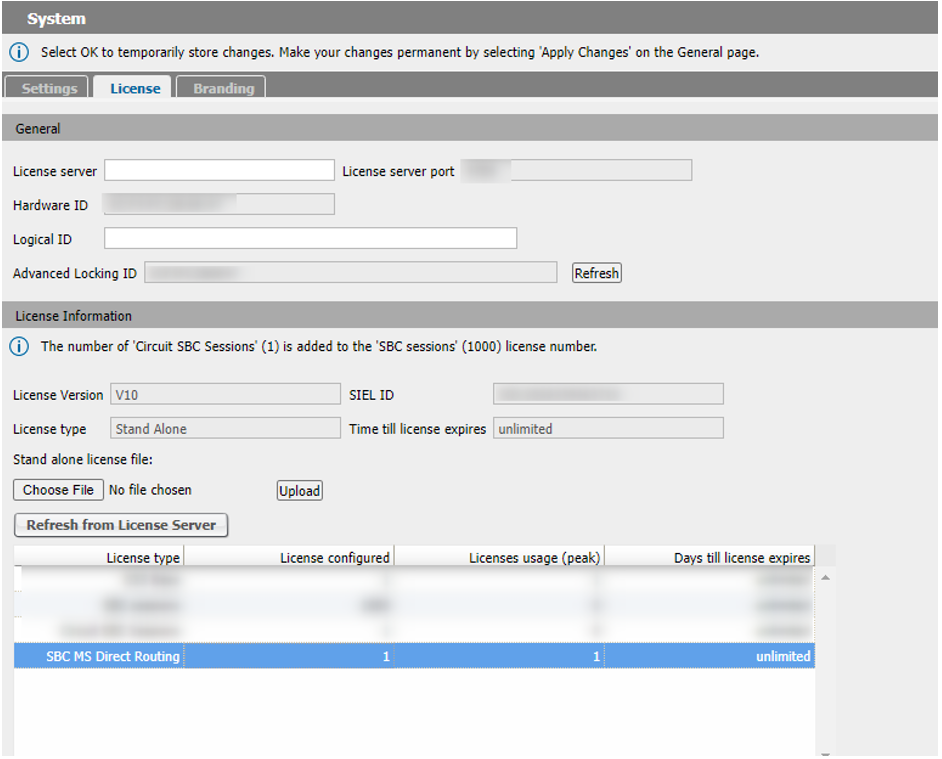
To be able to set MS Teams profile in SIP Service Provider Profile, a license is
required.
Figure 335. SIP Service Profile license
Navigate to OS SBC Management Portal > Features window, to check and
configure the Enable Remote Endpoints option.
On the Remote Endpoints window, click the Add button in SIP Service
Provider Profile area to add the endpoint profile for the OS SBC – Teams
Phone System endpoint.
Figure 336. SIP Service Provider Profile
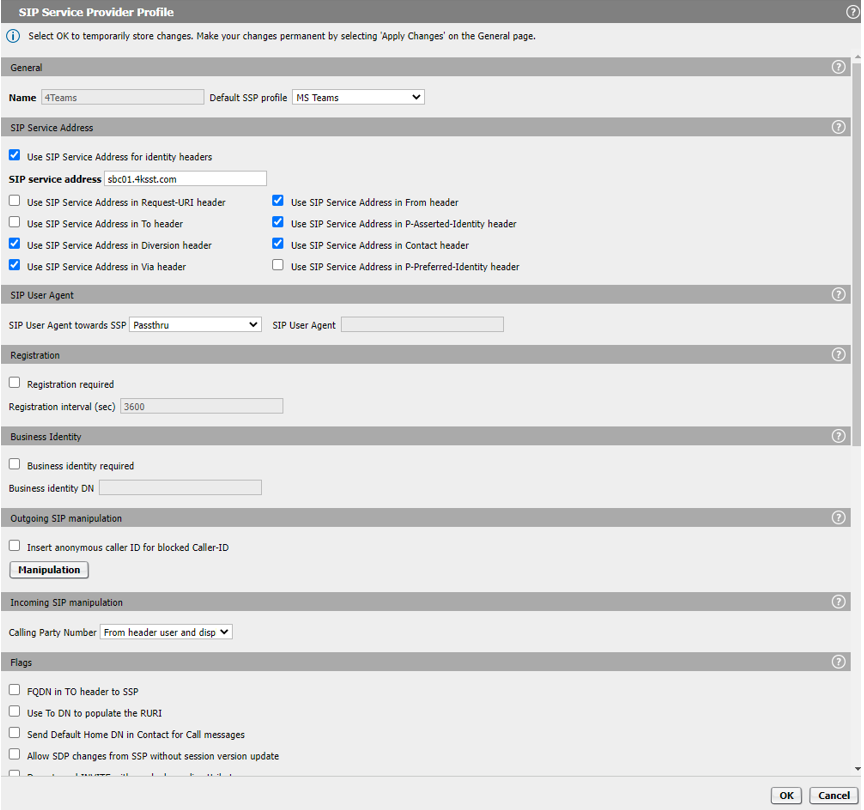
Figure 337. SIP Service Provider Profile
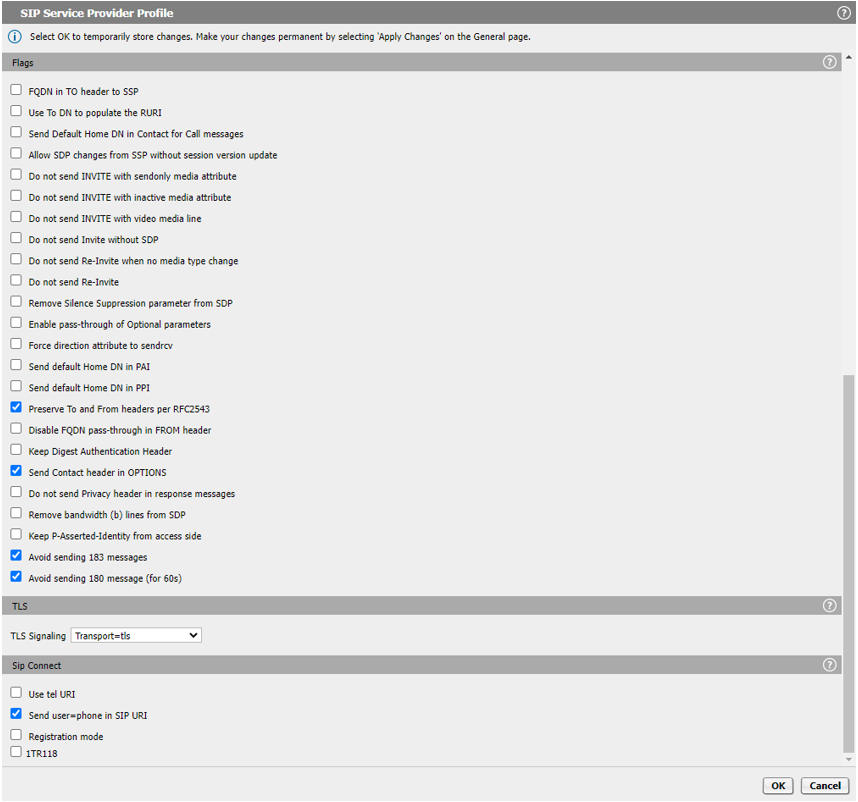
On the SIP Service Provider window, the following parameters must be
configured:
- Name: 4Teams (friendly name)
- Default SSP Profile: MS Teams
- SIP service address: sbc01.4ksst.com (SBC public FQDN)
Click the OK button to return to the Remote Endpoints window.
In the Remote endpoint configuration area, click the Add button.
Figure 338. Remote endpoint configuration
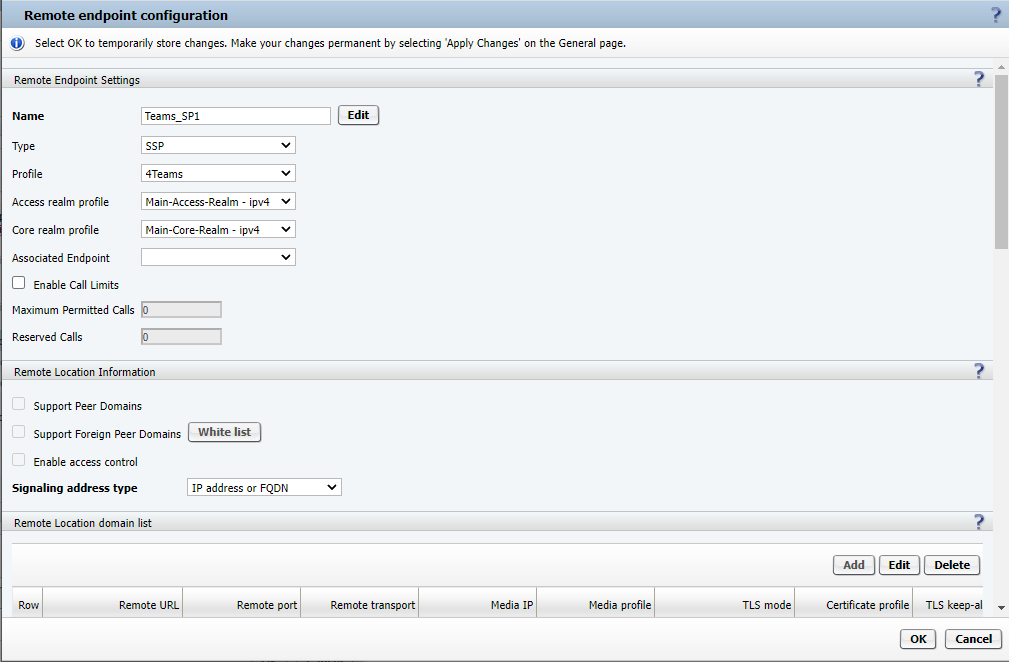
In the Remote endpoint configuration window, the following parameters must be
configured:
- Name: Teams_SP1 (friendly name)
- Type: SSP
- Profile: 4Teams
Click the Add button in the Remote Location domain list area.
Figure 339. Remote Location Domain
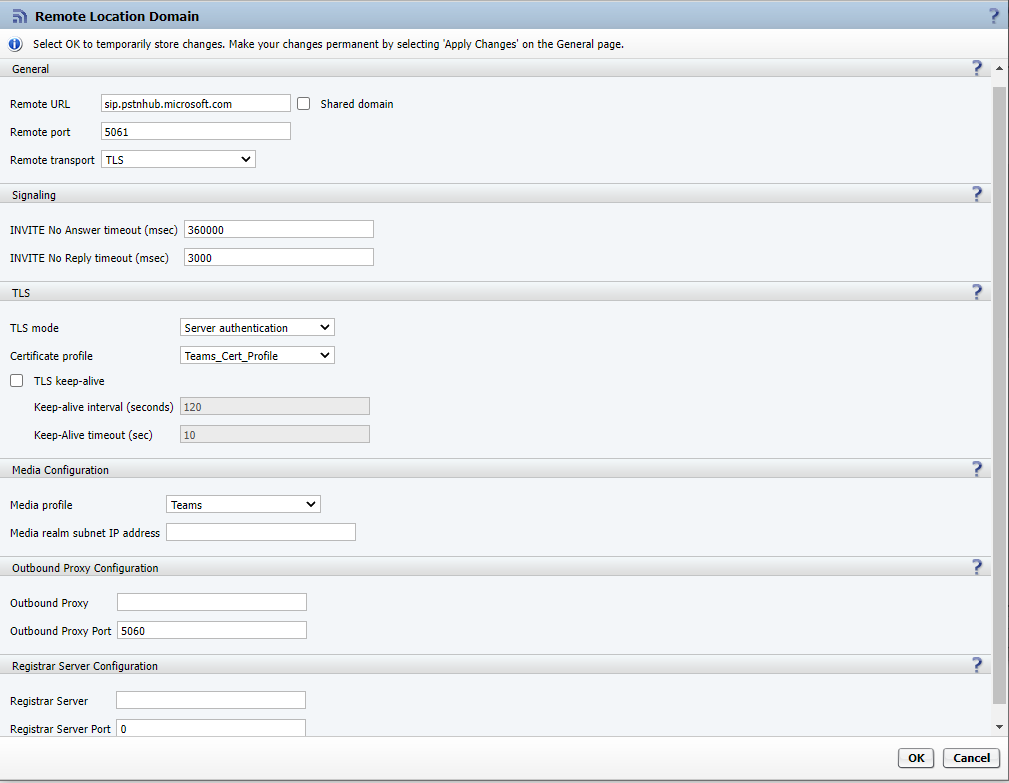
In the Remote Location Domain window, the following parameters must be
configured.
- Remote URL: sip.pstnhub.microsoft.com (Teams FQDN 1)
- Remote port: 5061
- Remote transport: TLS
- TLS mode: Server authentication
- Certificate profile: Teams_Cert_Profile (see section SIP Server)
- Media profile: Teams (see section Certificates)
Click on the OK button to return to Remote endpoint configuration.
Figure 340. Remote endpoint configuration
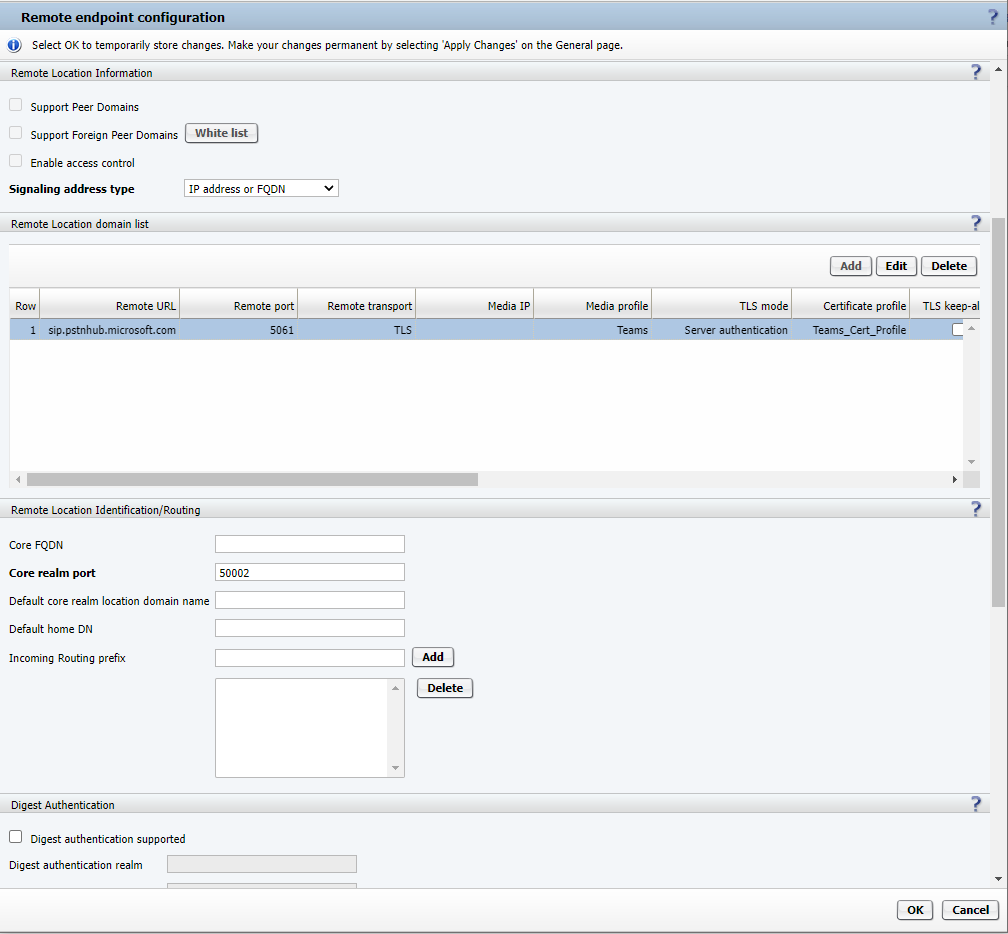
In the Remote endpoint configuration window, the following parameters must be
configured:
- Signaling address type: IP address or FQDN
- Core realm port: 50002 (configured under vHG MS Teams SIP trunk profile)
Click the OK button to return to the Remote Endpoints window.
Repeat the procedure for the rest of the Teams FQDNs (i.e.
sip2.pstnhub.microsoft.com, sip3.pstnhub.microsoft.com).
The Remote Endpoints window should look like the figure below:
Figure 341. Remote Endpoints
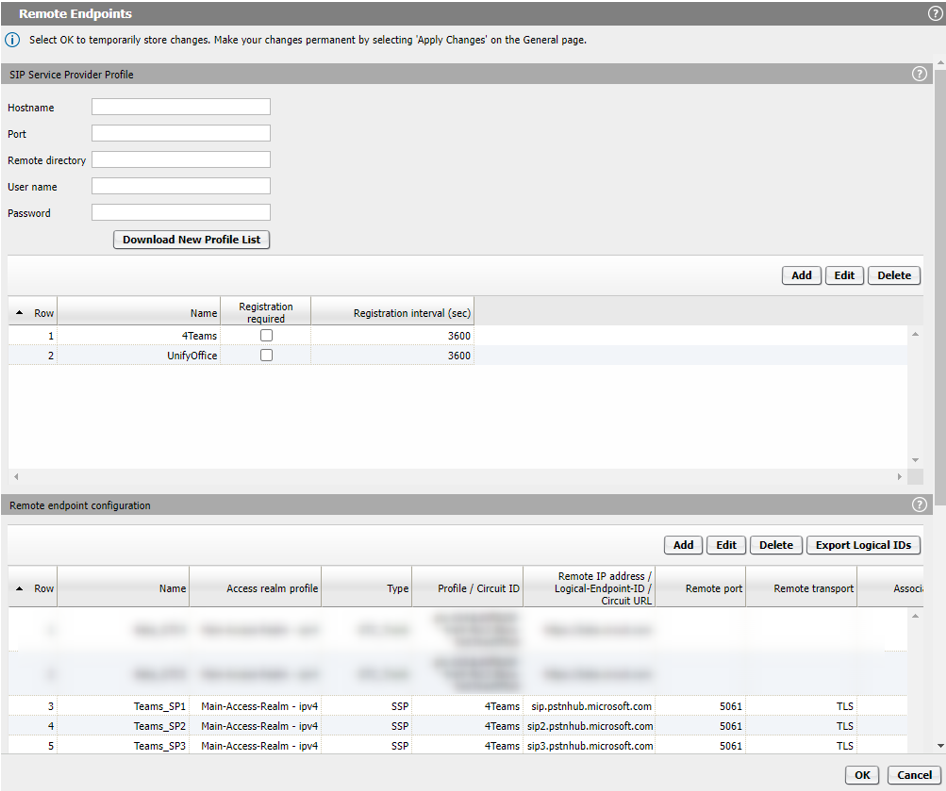
Click the OK button on all opened windows.
Click the Apply button on the main OS SBC page.